Last Updated on October 6, 2026
The best AI tool for most YouTube creators is not one app. A useful setup combines one thinking assistant, one editor and one specialist tool for the channel’s biggest bottleneck. For many creators, that means ChatGPT or Claude for planning, Descript or CapCut for editing, and vidIQ for channel research. YouTube Studio’s own AI features should be checked before adding another subscription.
Quick picks
| Tool | Best for | Core workflow role | Main trade-off | Best-fit creator |
|---|---|---|---|---|
| ChatGPT | Flexible planning | Angles, outlines and review | Needs context and fact checking | Most creators |
| Claude | Long source packs | Synthesis and narrative critique | Not YouTube-specific | Research-heavy channels |
| Gemini | Google ecosystem | Planning and document workflow | Value depends on integrations | Drive-centered teams |
| Perplexity | Current research | Source discovery and comparison | Underlying sources still need review | News and explainer channels |
| vidIQ | YouTube growth | Ideas, keywords and channel context | Signals do not replace audience judgment | Growth-focused creators |
| TubeBuddy | Channel operations | Testing and publishing workflow | Small samples can mislead | Established channels |
| Descript | Spoken-video editing | Transcript cuts, cleanup and captions | Less control for complex visual edits | Tutorial and interview channels |
| CapCut | Fast Shorts | Vertical editing and captions | Template sameness | Short-form creators |
| Premiere Pro | Professional editing | AI assistance inside deep timeline | Cost and learning curve | Professional teams |
| DaVinci Resolve | High-control editing | Edit, color, audio and effects | Hardware and learning demands | Long-form creators |
| Canva | Packaging | Thumbnails and repeatable brand assets | Template dependence | Solo creators and small teams |
| Adobe Express | Quick branded assets | Resize, graphics and light edits | Overlaps other Adobe tools | Adobe subscribers |
| OpusClip | Repurposing | Long video to short clips | Context can be lost | Podcast and webinar channels |
| ElevenLabs | Voice and dubbing | Narration, pickups and localization | Consent and likeness risk | Multilingual workflows |
| Adobe Podcast | Audio cleanup | Speech enhancement and transcription | Heavy processing can sound unnatural | Talking-head creators |
WORKFLOW
Plan
ChatGPT or Claude
WORKFLOW
Edit
Descript, CapCut or Resolve
WORKFLOW
Grow
vidIQ plus YouTube Studio
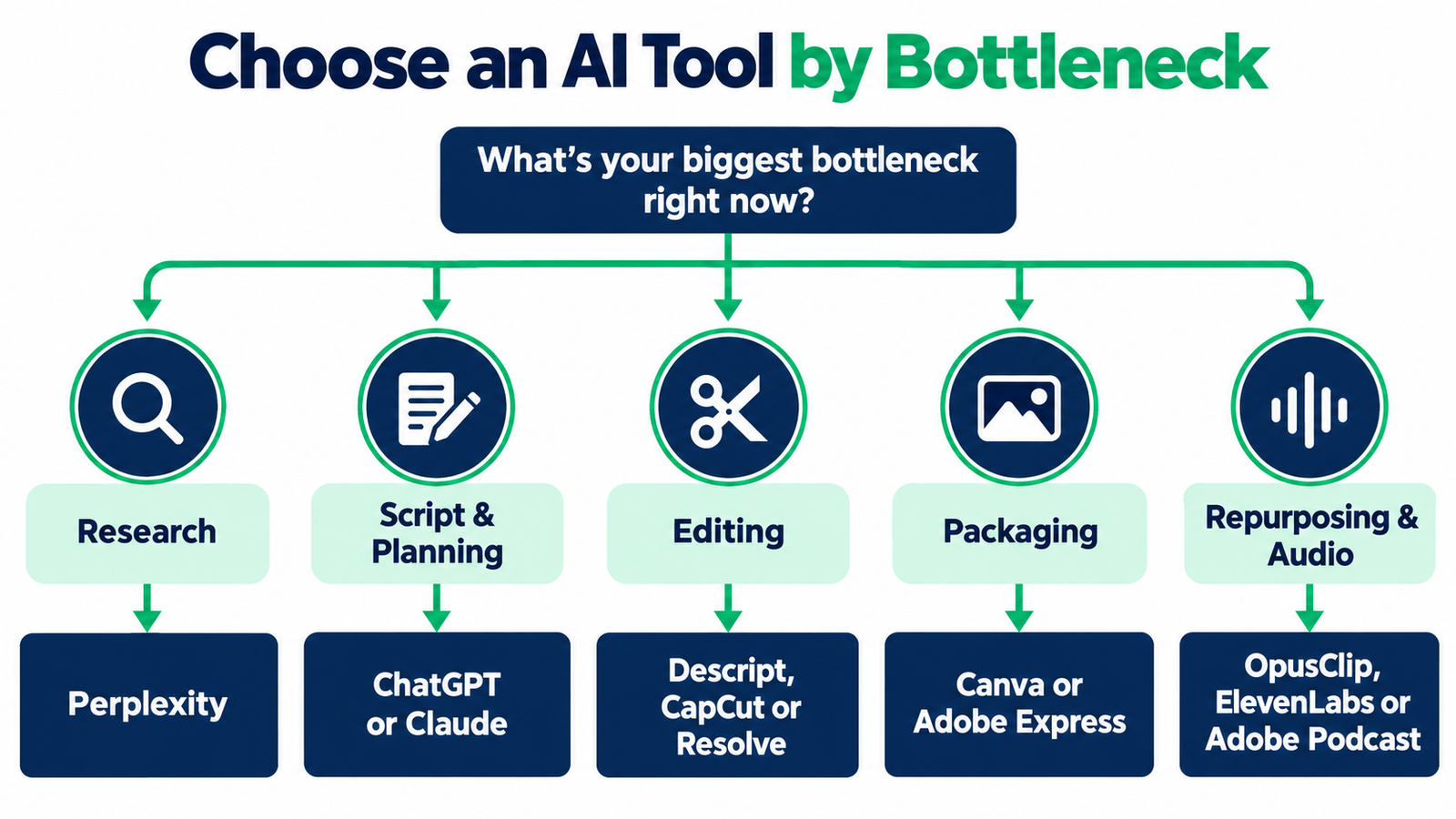
Start with the bottleneck, not the biggest feature list
AI can shorten a production step, but it can also add review work. A creator who struggles to choose topics needs a different tool from someone who records quickly but spends six hours removing pauses and building captions. Map the slowest repeatable task first. Then test whether one tool can remove that delay without flattening the channel’s voice.
A lean stack usually performs better than five overlapping subscriptions. General assistants are flexible, but they depend on good context and fact checking. Specialist tools are narrower, but they can connect directly to transcripts, timelines, channel analytics or thumbnail workflows.
Check YouTube’s native AI before paying
YouTube Studio now provides AI-assisted inspiration for ideas, titles, thumbnails and outlines. YouTube has also expanded automatic dubbing, which can reduce the need for a separate localization tool for eligible channels and language pairs. Availability can vary by channel, language and rollout stage, so creators should confirm what appears in their own Studio.
Use native features when they solve the full job. Buy a third-party tool when you need deeper control, collaboration, reusable brand systems, better timeline editing or a workflow that spans several platforms. For language expansion, compare dedicated AI video dubbing tools when Studio does not offer the control your workflow needs.
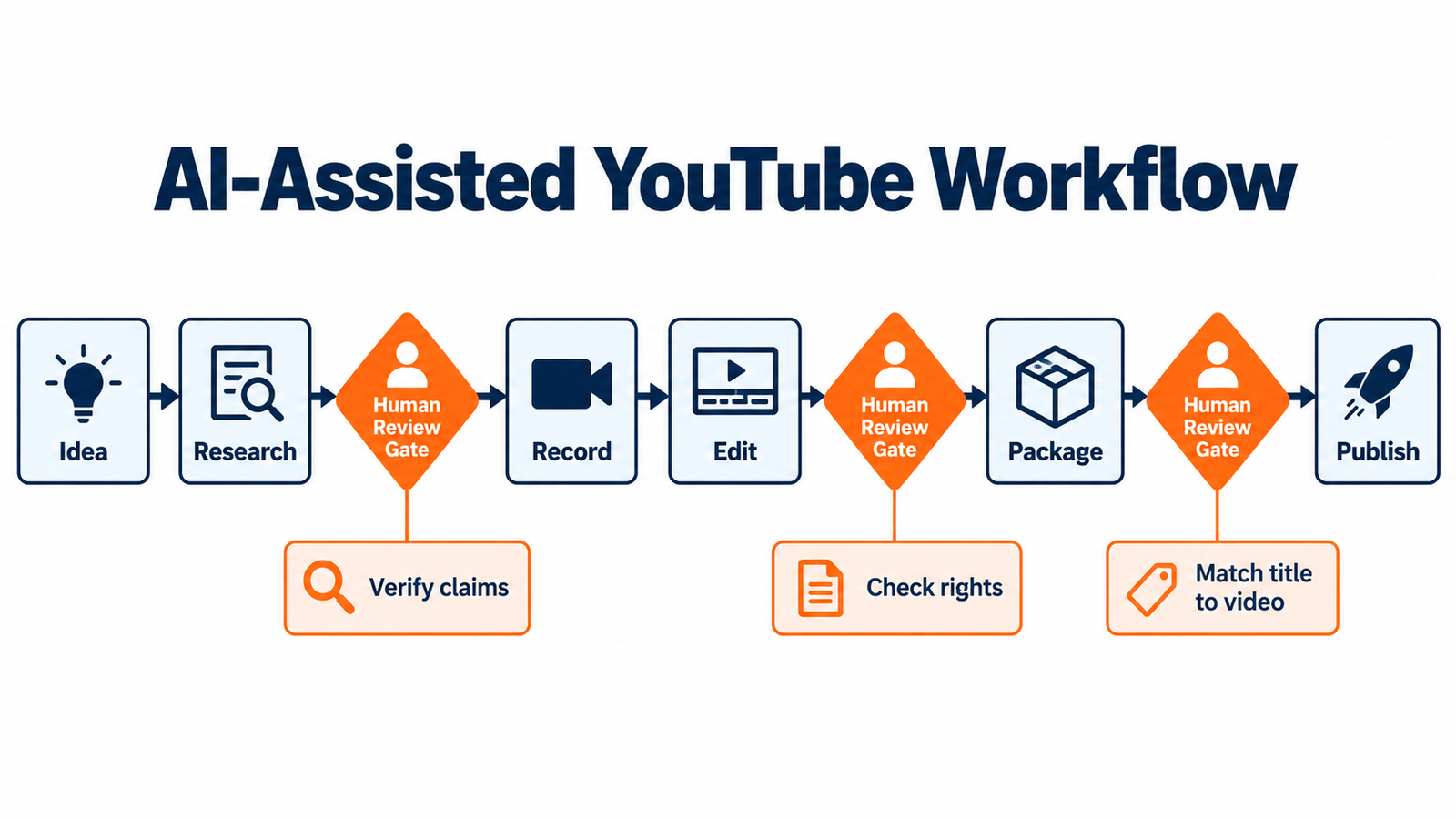
STEP 1
Idea
Choose a topic that fits the channel audience.
STEP 2
Research
Collect sources and verify the important claims.
STEP 3
Record
Capture original footage and clear audio.
STEP 4
Edit
Review cuts, captions and the complete narrative.
STEP 5
Package
Align the title and thumbnail with the video.
STEP 6
Publish
Complete the final quality and rights checks.
The 15 best AI tools for YouTube creators
1. ChatGPT
Best for: flexible planning assistant
ChatGPT is useful when the work starts as an unclear idea. Give it the channel promise, audience, past topics and evidence sources, then use it to explore angles, organize research and challenge weak assumptions. It is strongest as a thinking partner across many stages, not as an automatic script factory.
A practical use is to ask for three genuinely different video structures, compare the viewer promise in each, and then write the final narrative in your own voice. Keep factual claims tied to sources and never let a fluent answer substitute for verification.
2. Claude
Best for: long source packs and narrative review
Claude fits creators who work from interviews, reports, transcripts or long research notes. Its value is synthesis and structure. It can identify repeated themes, surface contradictions and help turn a large source pack into a coherent outline.
Use it as an editorial reviewer after the first draft. Ask where the argument drifts, which section repeats an earlier point and what a skeptical viewer may still question. That produces more value than requesting a generic rewrite.
3. Gemini
Best for: Google-centered creator workflows
Gemini is a sensible option for creators already working inside Google’s ecosystem. It can support research, planning and document-based collaboration without forcing a separate workspace. The buying decision is less about model rankings and more about whether the integration reduces copying between tools.
For a team using Drive to collect briefs, transcripts and approvals, fewer handoffs may matter more than one extra generation feature.
4. Perplexity
Best for: source-led topic research
Perplexity helps when the first task is finding current sources and understanding what changed. It is useful for building an initial research map, locating primary references and comparing claims. It should not be treated as the final authority. Open the underlying sources and confirm the date, context and exact statement.
This makes it a good front-end research tool for news, product updates and policy explainers, where freshness is part of the viewer promise.
5. vidIQ
Best for: YouTube-specific ideation and optimization
vidIQ brings ideas, keyword signals, competitive context and channel-focused suggestions into one creator workflow. It makes most sense for creators who want YouTube-specific guidance rather than a general chatbot.
Its recommendations are inputs, not commands. A promising keyword can still be wrong for the channel’s audience. Use the data to narrow choices, then judge each topic against viewer fit, production effort and the channel’s existing library. If the next decision is revenue rather than discovery, review our YouTube monetization guide alongside the channel data.
6. TubeBuddy
Best for: channel operations and testing
TubeBuddy is useful for creators managing repeatable publishing tasks and optimization checks. Its value grows when a channel has enough uploads for templates, tests and structured maintenance to save real time.
New channels should avoid over-optimizing tiny samples. A title or thumbnail test is most useful when the video has enough impressions to produce a meaningful signal.
7. Descript
Best for: editing spoken videos through text
Descript turns a transcript into the main editing surface. That is particularly useful for tutorials, interviews, commentary and podcasts where the spoken narrative drives the cut. Removing a sentence from the transcript can be faster than hunting across a conventional timeline.
The trade-off is control. Complex visual storytelling, detailed color work and layered motion design may still need a full editor. Descript is often strongest for the rough cut, cleanup and captions before a finishing pass. When you need a separate audio track for cleanup or transcription, follow our guide to extracting audio from video.
8. CapCut
Best for: fast Shorts and social-first editing
CapCut suits creators who need vertical edits, captions, reframing, templates and quick visual effects. It can turn a long recording into several short deliverables without a heavy desktop workflow.
Speed is its advantage, but template-driven editing can make channels look interchangeable. Keep recurring brand choices, pacing and caption treatment consistent instead of accepting every automatic suggestion.
9. Adobe Premiere Pro
Best for: professional AI-assisted editing
Premiere Pro is the better fit when AI should accelerate a mature production workflow rather than replace it. Its assisted tools sit inside a deep timeline, audio and finishing environment. That matters for teams with editors, shared projects and demanding delivery standards.
The economic question is training and operating time. A solo beginner may pay for power that remains unused, while a professional team may save more through integration with the rest of Adobe’s production stack.
10. DaVinci Resolve
Best for: high-control option with a capable free tier
DaVinci Resolve combines editing, color, audio and effects in one application. AI-assisted features can speed isolation, reframing and cleanup, while the traditional toolset remains available for precise manual work.
It rewards creators willing to learn. The free version is unusually capable, but hardware demands and the learning curve can be higher than browser-first editors. It suits long-form channels that want room to grow without rebuilding their workflow every year. Plan the final export with our video encoding software comparison when delivery quality is a recurring bottleneck.
11. Canva
Best for: channel packaging and repeatable design
Canva works well when thumbnails, end screens, community graphics and sponsor assets need a shared visual system. Its AI features can accelerate drafts, background changes and layout exploration, while templates help a small team maintain consistency.
Use it to create controlled variation, not random novelty. Keep the thumbnail promise aligned with the finished video.
12. Adobe Express
Best for: quick branded assets across formats
Adobe Express is useful for creators who need fast resizing, simple video edits and branded graphics without opening a full professional application. It is a practical middle layer between template tools and Adobe’s deeper creative suite.
Creators already paying for Adobe services should check what is included before buying a separate thumbnail, caption or social-resizing app.
13. OpusClip
Best for: turning long videos into short clips
OpusClip focuses on finding short moments inside longer recordings, reframing them and preparing social-ready clips. It can help interview, webinar and podcast channels build a repeatable repurposing pipeline.
The risk is context loss. A clip can be technically clean yet misleading or incomplete. Review the setup, claim and conclusion together, especially for advice, health, finance or technical content.
14. ElevenLabs
Best for: controlled AI voice workflows
ElevenLabs supports voice generation and dubbing workflows where pronunciation, consistency and multilingual output matter. It can help with pickup lines, localized versions or narration when rights and consent are clear.
Never clone a person’s voice without permission. Keep records of consent, approved uses and final review. For a recognizable presenter, the audience relationship may depend on natural delivery more than perfect synthetic consistency. Our AI dubbing comparison helps distinguish voice generation from complete localization workflows.
15. Adobe Podcast
Best for: fast spoken-audio cleanup
Adobe Podcast is valuable when a creator records in a normal room and needs clearer speech quickly. Its enhancement and transcription tools can reduce noise and improve intelligibility before the audio enters the edit.
Heavy processing can make speech sound unnatural. Compare the cleaned version with the original on headphones and phone speakers, then back off if breaths, room tone or consonants become distracting. Improve the source recording first with a suitable mini wireless microphone for mobile shoots or one of our streaming microphone picks for desk-based recording.
| Need | Start with | Watch for |
|---|---|---|
| Research | Perplexity | Verify original sources |
| Spoken edit | Descript | Complex visual work |
| Shorts | CapCut or OpusClip | Template sameness |
| Packaging | Canva | Title-thumbnail mismatch |
Choose a stack by creator workflow
| Creator workflow | Lean stack | Why it works | Avoid |
|---|---|---|---|
| Beginner long-form | Gemini or ChatGPT + DaVinci Resolve + Canva | Low-cost planning, editing and packaging | Buying overlapping all-in-one tools |
| Talking-head educator | Claude + Descript + Canva | Source synthesis and transcript-first editing | Skipping factual review |
| Shorts-first channel | ChatGPT + CapCut | Fast ideation and vertical production | Using the same template every time |
| Podcast repurposing | Descript + OpusClip + Adobe Podcast | Transcript edit, clip extraction and audio cleanup | Publishing clips without context |
| Growing team | vidIQ + Premiere Pro + Canva | Channel research, professional timeline and shared assets | Adding tools without clear ownership |
The goal is not to automate every step
A strong AI workflow keeps human decisions at the moments that define trust: the topic promise, factual claims, examples, final edit, title-thumbnail match and publication decision. Automation should remove mechanical work around those decisions.
For monetized channels, this matters beyond aesthetics. YouTube evaluates channels and videos in context. Repetitive, low-value or misleading production can create audience and monetization risk even when every asset was generated with a legitimate tool. Review the current YouTube monetization requirements before scaling an automated format.
A seven-day tool pilot
Day 1: record the current time spent on the target task. Day 2: run one real video through the tool, not a demo project. Day 3: note every manual correction. Day 4: test export quality and handoff friction. Day 5: compare the result with the normal process. Day 6: check licensing, data and collaboration limits. Day 7: decide whether the time saved is worth the cost and review burden. For tutorials captured on a phone, use our iPhone screen recording guide to establish a repeatable source clip before judging an editor.
| Day | Test | Evidence to capture | Pass question |
|---|---|---|---|
| 1 | Baseline current workflow | Time and correction count | What problem must improve? |
| 2 | Run one real project | Setup time and output quality | Can the tool handle real inputs? |
| 3 | Review corrections | Manual fixes and failed outputs | Does it reduce or move the work? |
| 4 | Test handoffs | Export, captions and file formats | Does it fit the production chain? |
| 5 | Compare outcomes | Quality and audience promise | Is the result at least as strong? |
| 6 | Check limits | Rights, privacy, credits and seats | Are limits acceptable? |
| 7 | Decide | Net time saved and monthly cost | Is the value repeatable? |
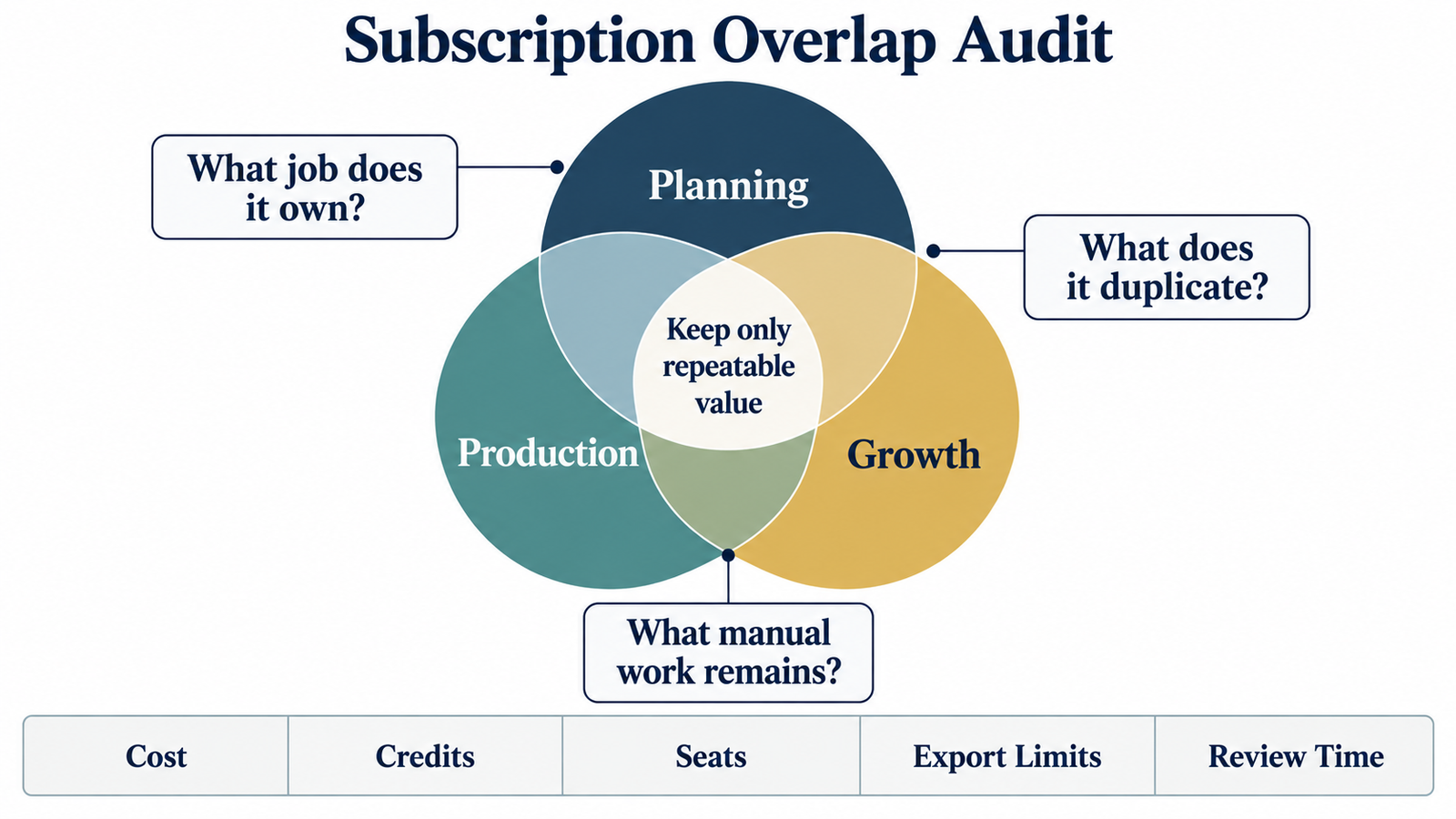
Cost control: remove subscription overlap
Before paying annually, list every tool and the exact job it owns. If two tools both generate titles, captions and thumbnails, decide which one is the system of record. Keep the second only if it solves a separate high-value problem.
Also count hidden costs: upload limits, export watermarks, cloud storage, extra seats, stock-asset rights, voice credits and the time required to fix weak output. A cheap subscription can be expensive if it creates another review stage. If you distribute outside YouTube, include the export and publishing needs of your chosen YouTube alternatives in the audit.
Quality, rights and disclosure checks
Confirm that you can use generated assets commercially. Obtain consent before cloning a voice or likeness. Check music, stock footage and training-source terms. Review factual claims against primary sources. Watch the entire final video and confirm that the title and thumbnail accurately represent it.
Creators who livestream should keep production tools separate from delivery settings. Use our streaming encoder tools guide and video encoding software guide for technical stream configuration rather than asking a general AI assistant to guess bitrate or encoder settings.
Frequently asked questions
What is the best free AI tool for YouTube creators?
The best free starting point depends on the task. ChatGPT, Gemini or Claude can help with planning, while DaVinci Resolve offers a capable free editing workflow. YouTube Studio’s native Inspiration tools may cover early ideation without another subscription.
Can YouTube monetize AI-generated videos?
AI use alone does not determine monetization. Original value, rights, authenticity, policy compliance and the overall channel pattern matter. Creators should review current YouTube Partner Program and monetization-policy guidance before publishing at scale.
Which AI tool is best for YouTube Shorts?
CapCut is a practical choice for fast vertical editing. OpusClip is stronger when the job is extracting Shorts from long recordings. The better option depends on whether you are creating natively for Shorts or repurposing long-form content.
Should I use one all-in-one tool or several specialists?
Start with one broad assistant and one production tool. Add a specialist only when a measurable bottleneck remains. This keeps costs, handoffs and brand inconsistency under control.
Can AI replace a video editor?
AI can automate rough cuts, captions, cleanup, reframing and clip selection. It does not reliably replace editorial judgment, visual rhythm, factual review or the understanding of what a specific audience values.
Related TSR Guides
MONETIZATION
YouTube monetization
Check channel eligibility and revenue requirements.
Read guide →EXPORT WORKFLOW
Video encoding software
Compare tools for the delivery stage after editing.
Read guide →DISTRIBUTION
YouTube alternatives
Plan formats and audiences beyond one platform.
Read guide →


Leave a Reply