
Google Veo is the practical option to investigate for new video generation; OpenAI Sora is discontinued. That settles availability, but it does not prove Veo produces the better-looking shot for every brief. Your next decision is which supported Google route gives you the controls your edit needs, and whether the result is usable without repeated regeneration.
For a YouTube creator adding a short visual insert, the important questions are concrete: can the clip begin on the right frame, retain the subject, end where the next cut needs it, and carry acceptable sound? A beautiful standalone clip can still be wrong for the sequence.
This is a research-based comparison of documented capabilities and access, with historical observations attributed to their source. TSR has not run matched hands-on tests of these models. For the wider planning and editing stack, see our guide to AI tools for YouTube creators.
In this article
- The comparison has changed: access comes first
- What older quality comparisons can actually tell you
- Match Veo controls to the shot you need
- Keep the generation route separate from the model
- Budget for usable shots, not generated seconds
- Run a shot-level trial before committing
- Which route makes sense for your next video?
- FAQs
The comparison has changed: access comes first
OpenAI’s discontinuation notice gives two separate dates: Sora’s web and app experiences ended on April 26, 2026, and the API discontinuation date was September 24, 2026. An older tutorial showing Sora inside a paid plan is therefore not a reason to buy that plan for new Sora generation.
There is an important Google deadline too. Google’s Gemini API documentation lists October 22, 2026 as the shutdown date for the Veo 3.1, Fast and Lite preview endpoints. That notice concerns named API endpoints, not every place that uses Veo. It points developers to Gemini Omni Flash or GA models through the Gemini Enterprise Agent Platform.
| Route | Current decision | What to verify | Boundary |
|---|---|---|---|
| OpenAI Sora | Discontinued web/app and API | Official discontinuation guidance | Historical clips are not current access |
| Veo in Google Flow | Investigate for a browser workflow | Region, account, active model and operation | Flow feature support differs by model |
| Veo preview IDs in Gemini API | Migration required at listed shutdown date | Exact preview ID and destination route | Not a shutdown of all Veo products |
| GA Veo on Google’s Cloud platform | Evaluate for an integration | GA ID, quotas, operation and terms | Separate from consumer-plan credits |
For an individual creator, start with the product you will actually use. For a developer replacing an integration, start with its endpoint and model ID. Those are different decisions, even when both interfaces display the Veo name.
What older quality comparisons can actually tell you
Historical side-by-side clips can help you spot the kinds of error to inspect: a subject drifting, a requested movement missing, or dialogue that does not match the brief. They cannot establish that a retired service is still available or that every current host exposes the same controls.
Voyager’s nine-clip comparison reported stronger instruction-following from Veo in parts of its sample, while also identifying Sora clips it preferred for particular scenes. Its page identifies the tested routes, clips and historical costs. Treat those as observations from that set, not a measured TSR result or a promise about your next generation.
Our editorial judgment is to evaluate the weakest requirement your finished video cannot hide. A background landscape may survive a small motion inconsistency. A close-up of a hand using a specific product may not. For a narrated explainer, a silent insert you can cut cleanly may be more valuable than a clip with impressive generated dialogue that conflicts with your voice-over.
Separate native scene sound from localization. If the job is translating an existing finished video, our AI video dubbing tools guide addresses that workflow; choosing a scene generator does not solve it.
Match Veo controls to the shot you need
Frames constrain the transition; ingredients guide the subject
Google’s Flow creation guide distinguishes start/end frames from ingredients. Frames specify where a clip begins and finishes; ingredients provide references for characters or objects. The first is useful when the edit needs to land on a planned composition. The second is relevant when the same subject must remain recognizable across shots.
Consider a hypothetical transition from a tabletop product shot to a wider room. If the final composition matters to the next cut, supplying an end frame makes the intended destination explicit. A product reference alone serves a different purpose. Neither input guarantees every intermediate frame will preserve the object’s geometry.
Keep the text and images consistent. Google advises against conflicting guidance and recommends clean subject references. If the supplied image shows a closed box while the prompt demands an already-open one from the first frame, resolve that contradiction before spending more attempts. Use only reference material you are entitled to upload.
Extending a clip is not the same as editing its middle
Flow’s model feature matrix exposes an easy-to-miss interaction: Veo 3.1 Lite can extend eligible eight-second Veo 3.1 clips, including Fast and Quality outputs. Fast and Quality do not themselves offer Extend in that interface. Selecting Quality for the first shot therefore does not mean you should keep the same selection for the continuation.
The same matrix does not list video-to-video editing for those Veo variants. Continuing an eligible generated clip and rewriting an arbitrary uploaded sequence are different operations. If you need to change an object halfway through an existing shot, inspect the active model’s editing support rather than assuming Extend will do it.
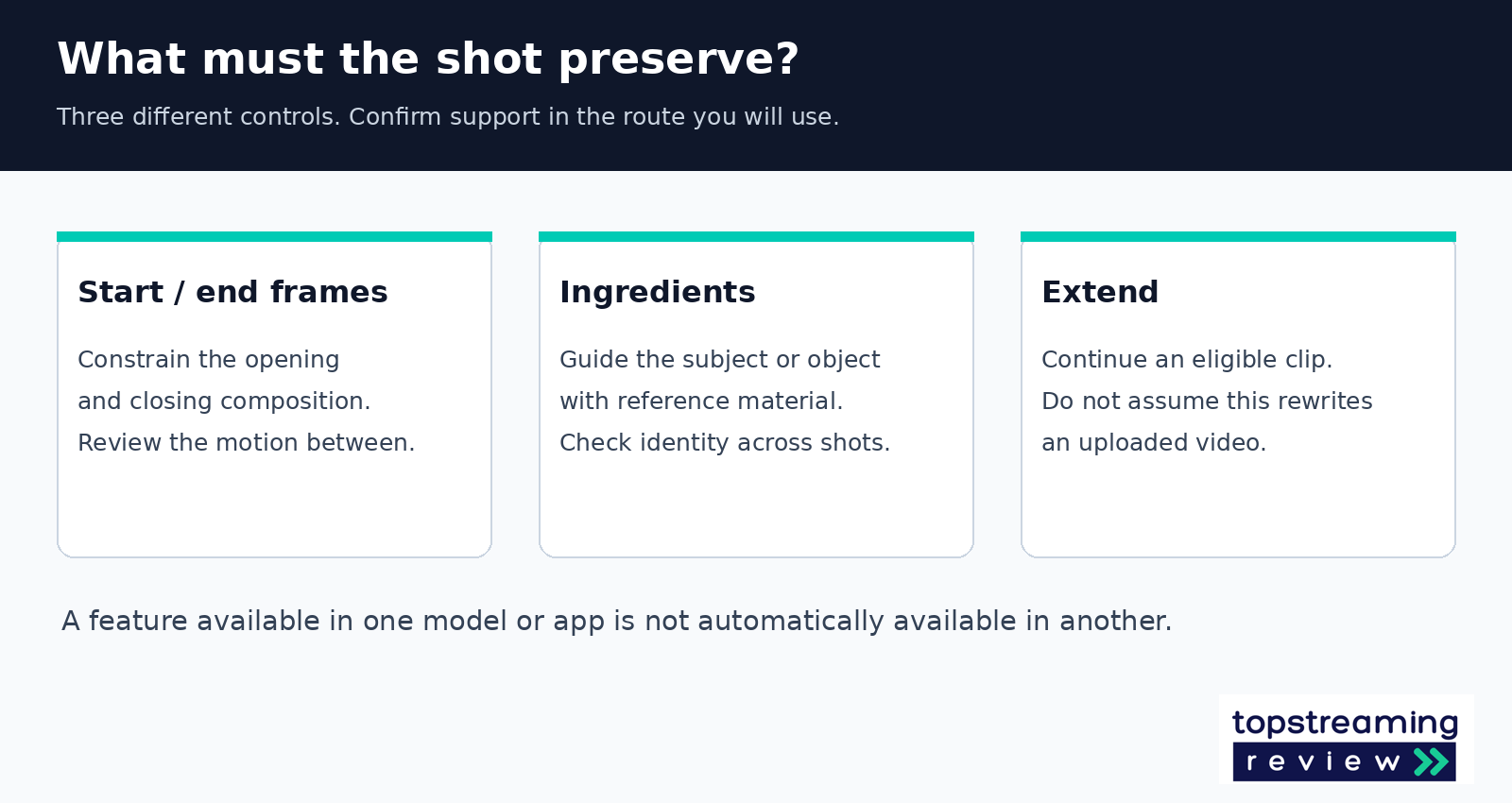
For a continuation, check both the source clip’s eligibility and the model used for the next generation. An eight-second Quality output and a Lite extension can be parts of the same Flow sequence; arbitrary uploaded-video editing is a separate requirement.
Keep the generation route separate from the model
Google’s Cloud model documentation lists the GA model ID veo-3.1-generate-001. It documents short clip durations, portrait and landscape output, and sound generation for that route. Its Cloud configuration, quotas and terms should be checked directly; a consumer plan’s credit allowance is not a Cloud deployment specification. Check its listed support-retirement date before committing an integration; availability can change independently of the consumer app.
For Flow, Google’s getting-started guidance recommends a Chromium browser, with a computer offering its strongest editing features. Its model guide says Flow will notify you when a selected feature is unsupported. If the output or credit estimate changes unexpectedly, inspect the active model and settings before blaming the prompt.
Check Flow’s supported regions before buying a plan for it. Access to a Google AI subscription does not establish access to every Flow feature in every location. A missing option is a reason to check the documented account, region and model requirements, not to keep rewriting the same prompt.
If an API integration stops working around the preview retirement, inspect its exact model ID before changing the prompt. Google’s API guide names veo-3.1-generate-preview, veo-3.1-fast-generate-preview and veo-3.1-lite-generate-preview in the shutdown warning. It recommends Gemini Omni Flash as the default for new video generation, with Veo retained for specific needs. For a migration, verify the destination’s authentication, request format, operation, output handling and billing together. Changing only the model-name string can leave the rest of the integration mismatched.
Budget for usable shots, not generated seconds
Google One’s credit guidance says usage varies by feature and model, and credits may expire under the terms attached to them. Check the displayed cost for your actual selection. An old per-second API price and a consumer credit allowance are not interchangeable units.
The useful production denominator is the number of shots you can retain in the edit. For this hypothetical planning exercise, assume each attempt costs 10 credits. These figures are invented inputs for the arithmetic, not TSR test data, a current product price or a claim about either model’s success rate.
| Hypothetical planning unit | Amount | What it tells you |
|---|---|---|
| Shots needed in the edit | 6 | Production requirement |
| Generated attempts | 18 | Three attempts budgeted per planned shot |
| Shots retained after review | 4 | Acceptance, not merely generation success |
| Attempts per retained shot | 4.5 | 18 divided by 4 |
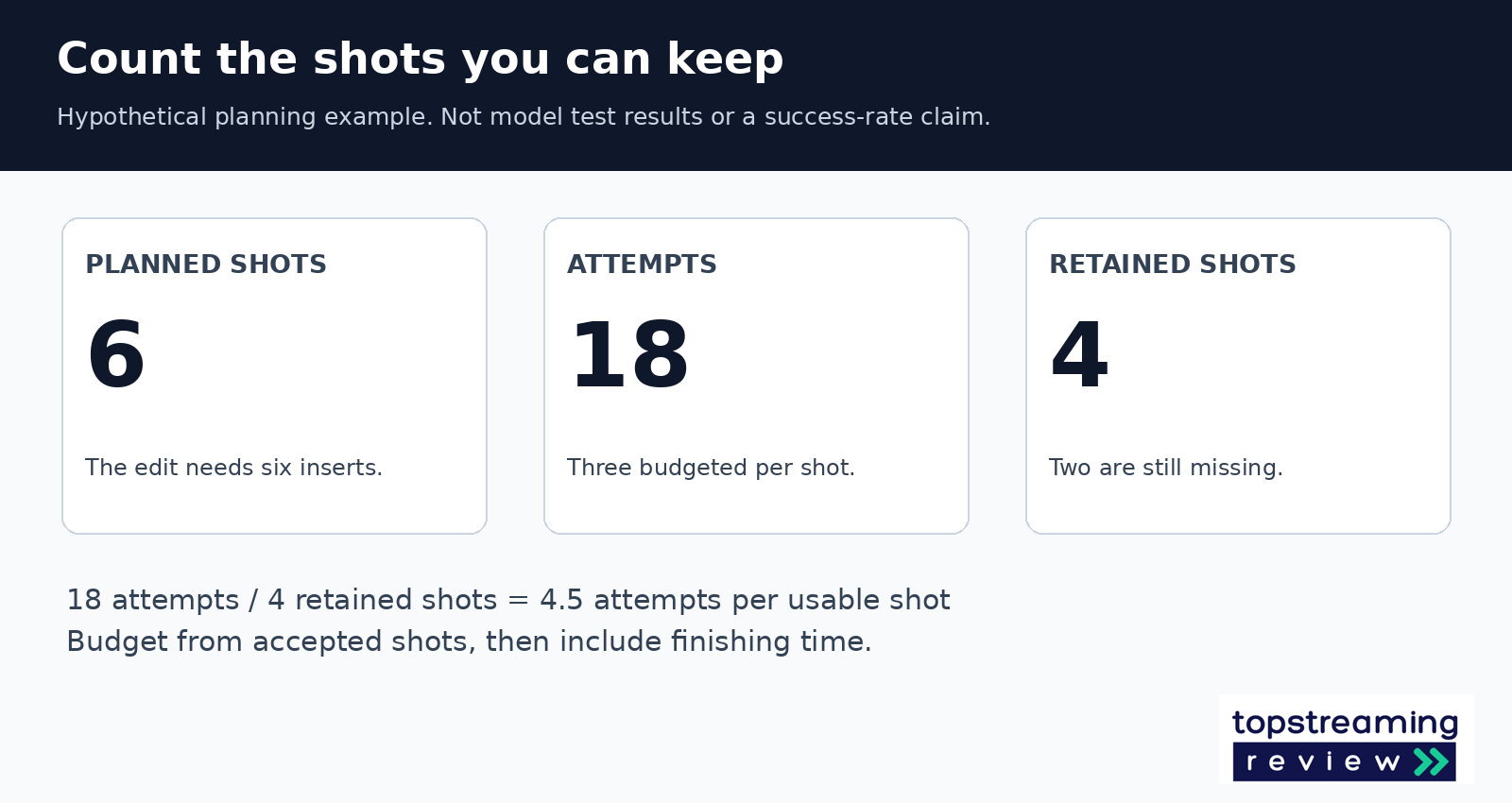
If you used 180 hypothetical credits across those attempts, the effective spend would be 45 credits per retained shot, not 10. The cheaper-looking generation number hides the rejected work. There would also still be two planned shots missing. Use your own measured acceptance rate and current displayed credit cost before estimating a month’s production.
Define acceptance before generating. For a short insert, that might mean no identity change, no obvious geometry failure, a clean entry and exit, and audio that can be used or deliberately replaced. A technically successful generation that misses those requirements is still a production cost.
Run a shot-level trial before committing
Test one representative shot through the whole workflow. A broad montage of attractive examples is less useful than finding out whether the difficult shot in your next video survives the final export.
- Write the shot’s job in the edit. State duration, framing, subject, movement, sound and the cut it must connect to. Keep essential written labels for the timeline editor if they must be exact.
- Confirm the route and operation. Record the product, model selection, length, aspect ratio and displayed cost. For an API, record the exact model ID as well.
- Generate a small, fixed-budget set. Keep inputs coherent, then change one meaningful variable at a time. Do not turn an unclear brief into unlimited retries.
- Place the clip in the real timeline. Watch its opening and closing joins, listen with the surrounding narration and inspect subject continuity. Record why an attempt is rejected.
- Export the intended deliverable and watch it through. If compression creates a new problem, investigate the delivery settings separately; our video codec guide explains that part of the chain.
An instructional brief could be: ‘A six-second landscape insert of an unbranded ceramic cup on a wooden desk. A slow camera move reveals the window beside it. No hands, no on-screen text and no spoken dialogue. Leave a still moment at the end for the next cut.’ This is a sample brief, not a tested prompt or a guaranteed result.
Start with the simplest version that answers the edit. Add precise dialogue, complex interaction or a second subject only when the story needs it. Each additional requirement creates another condition the finished shot must satisfy.
Which route makes sense for your next video?
For new generation between these two model families, investigate a supported Veo route rather than buying access on the assumption that Sora remains available. Flow is the more relevant starting point for a creator who wants a browser workflow, provided the account, region and required operation are supported. A team integrating generation into software needs the endpoint-level check instead.
Avoid committing to Veo solely for an operation its selected interface does not provide. If the job is editing an uploaded clip rather than generating or extending an eligible one, assess an active model with that documented operation. If the job needs an exact product demonstration or a factual depiction you cannot tolerate changing, filming or conventional editing may be the stronger production choice.
Keep downloaded Sora footage as existing media where you have appropriate rights, but plan future revisions around tools you can still access. The useful verdict is about a sustainable workflow: a supported route, the right control and a shot that passes your edit. A historical ‘best-looking model’ badge cannot supply any of those on its own.
Investigate a supported Veo route and confirm its current controls.
Verify uploaded-video editing support. Extend is a different operation.
Consider filming or conventional editing when generated changes are unacceptable.
FAQs
Can a paid ChatGPT plan restore Sora generation?
Do not buy a plan for that purpose. OpenAI’s official discontinuation notice covers Sora’s web/app experience and API. Check the current product offering directly rather than relying on an old plan comparison.
Can Flow Extend continue any old Sora video?
Do not assume it can. Flow’s documented Veo extension workflow applies to eligible Veo 3.1 clips; it does not establish support for arbitrary Sora exports. Treat an old Sora file as source media and assess an active tool’s uploaded-video support separately.
What if a Flow feature is unavailable for the selected model?
Google says Flow will notify you when a selected feature is unsupported by the current model. Check the active model, operation and displayed cost before generating. A shared app does not mean every model in it supports the same operation.
Related TSR guides
Plan the wider research, editing and publishing stack.
Read guide →Evaluate spoken-language replacement workflows.
Read guide →Understand delivery settings after the edit.
Read guide →


Leave a Reply