
Last Updated on October 5, 2026
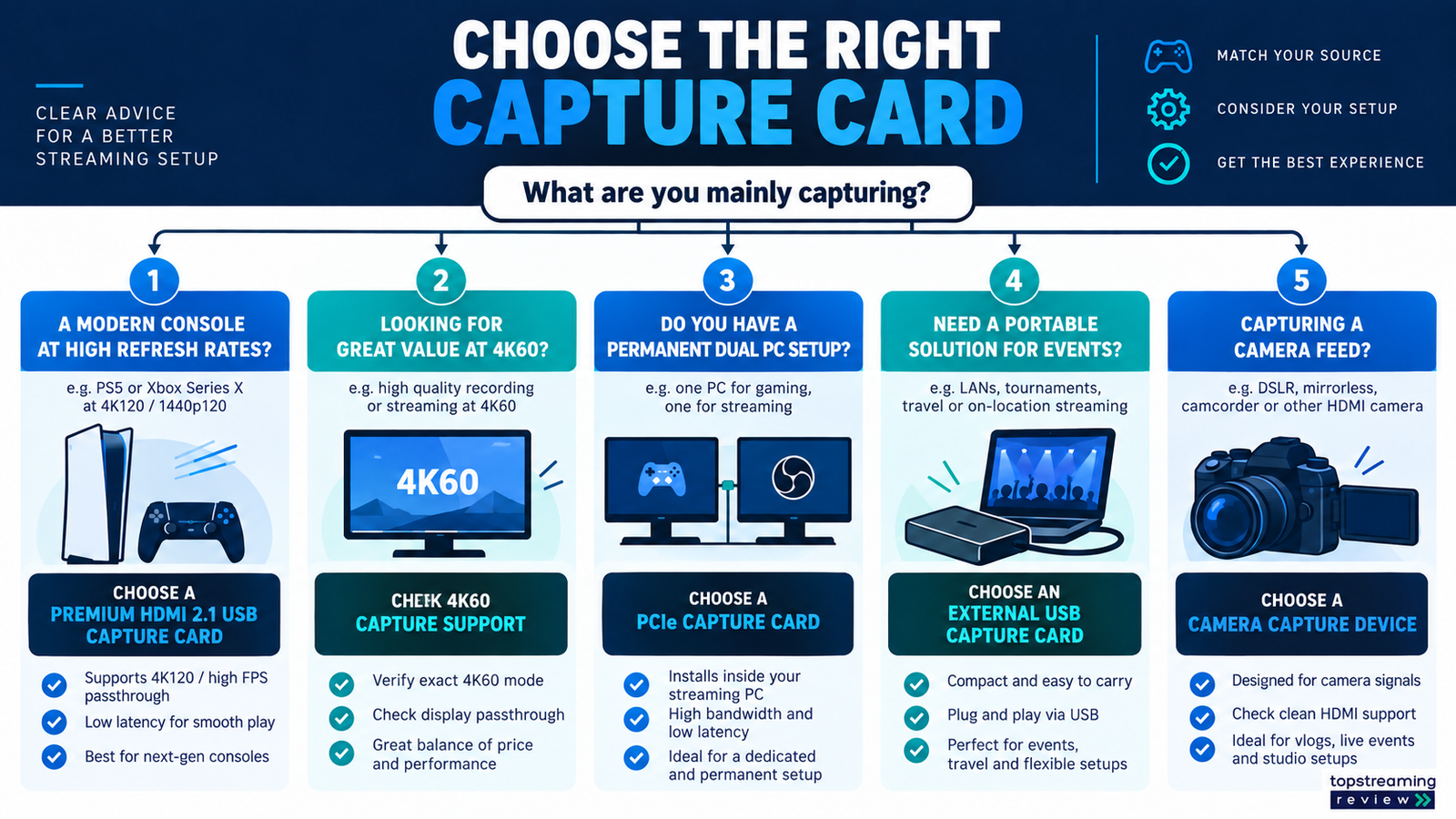
The best capture cards for streaming preserve the way you want to play while delivering a stable signal your streaming computer can handle. For most console and laptop creators, Elgato 4K X is the strongest premium USB choice. AVerMedia Live Gamer Ultra S gives a better value route to 4K60 capture. Elgato Game Capture Neo is easier to justify for a straightforward 1080p stream. Elgato 4K Pro suits a permanent dual-PC desktop.
Quick picks: match the card to your setup
PREMIUM USB
Elgato 4K X
For high-refresh console play and a capable 10Gbps USB streaming computer.
See premium pick →VALUE 4K60
AVerMedia Ultra S
For 4K60 recording when maximum HDMI 2.1 passthrough is not essential.
See value pick →PERMANENT DESKTOP
Elgato 4K Pro
For a fixed dual-PC setup with the required PCIe slot and bandwidth.
See PCIe pick →Do not buy from the capture number alone. A card can pass a high-refresh 4K signal to your gaming display while capturing a lower format for OBS. That may be exactly right. Your display, HDMI cables, USB or PCIe connection, computer and software must all support the chosen mode.
Capture cards compared
| Card | Best for | Connection | Play priority | Capture priority | Main trade-off |
|---|---|---|---|---|---|
| Elgato 4K X | Premium console | USB 10Gbps | HDMI 2.1 high refresh | Up to high-refresh 4K modes | Needs capable USB and PC |
| AVerMedia Ultra 2.1 | Premium portable setup | USB 10Gbps | 4K high refresh | 4K144 Windows / 4K60 macOS* | Mode compatibility varies |
| AVerMedia Ultra S | Value 4K60 | USB 5Gbps | 4K60 HDR/VRR | 4K60, high-rate 1440p/1080p | Lower passthrough ceiling |
| Elgato 4K Pro | Dual-PC desktop | PCIe | High-end HDMI 2.1 | 4K60 capture | Desktop installation |
| Elgato Neo | Simple 1080p streams | USB 3 | Console passthrough | 1080p-focused | Limited advanced modes |
| NZXT Signal 4K30 | 4K play, 1080p stream | USB | 4K passthrough | Up to 4K30 capture | Not for 4K60 masters |
| Magewell HDMI Plus | Camera production | USB 3 | HDMI loop output | 1080p60 camera ingest | Higher production pricing |
| Cam Link 4K | Single-camera feed | USB 3 | No game passthrough | Camera capture | One focused input job |
*Maximum modes depend on operating system, firmware, capture software, pixel format and HDR settings. Check the exact combination before buying.
What to check before buying a capture card
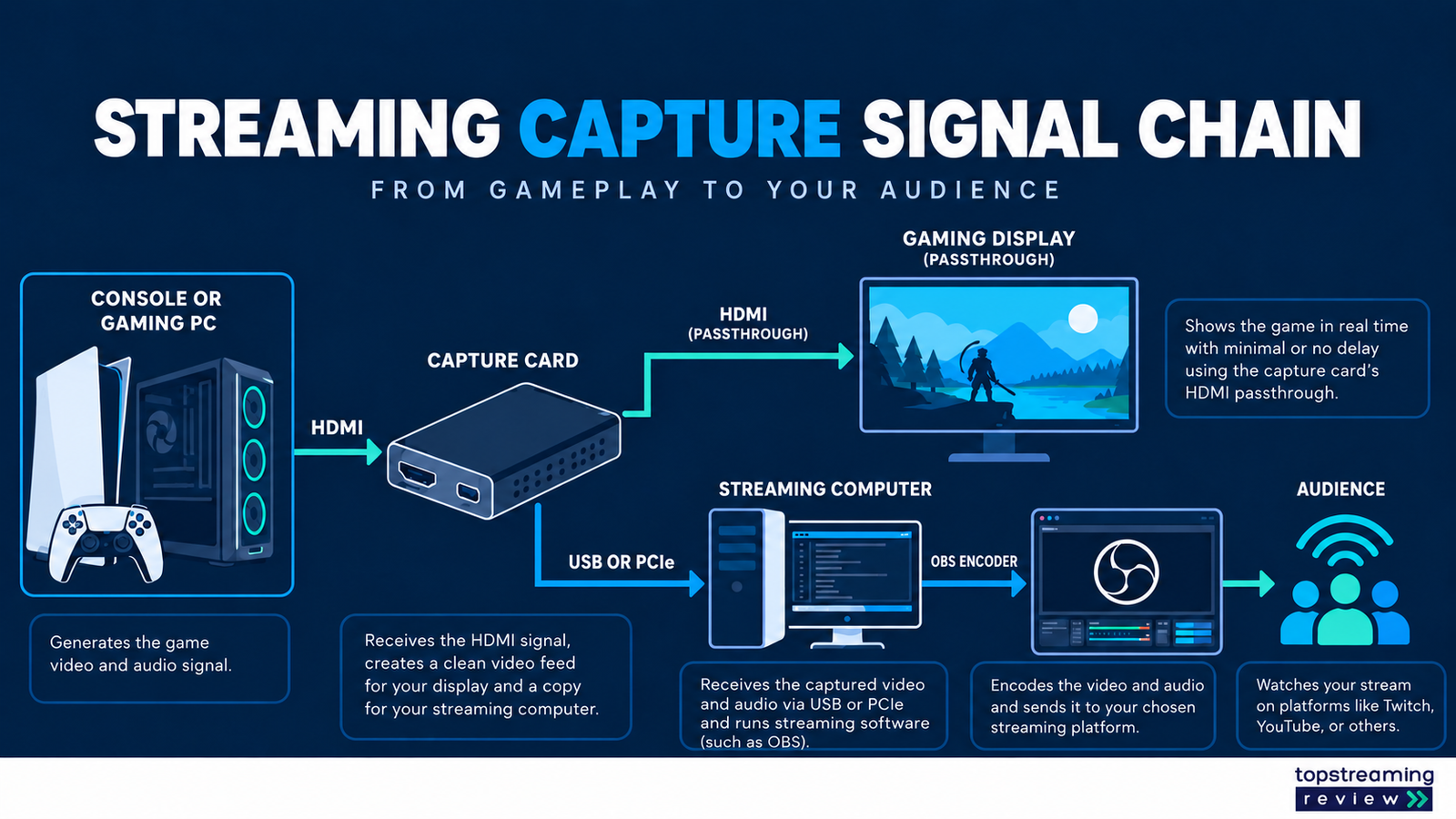
Map the entire signal path. Start with the source: PlayStation, Xbox, Nintendo console, gaming PC, camera or mobile device. Next is the capture card. Then come the play display, streaming computer and live streaming software. The weakest interface in that chain sets the working limit.
Passthrough is what you see while playing. Capture is what reaches the computer. Streaming output is what viewers receive. These can be three different formats. A creator may play at 4K120 with VRR, capture a 4K60 local master and stream at 1080p60.
One setup, three different video formats
01 · PLAY
Passthrough
What your monitor receives. Preserve the refresh rate, HDR and VRR you need.
Compare display modes →02 · RECORD
Capture
What OBS receives. Confirm the exact resolution, frame rate and pixel format.
Check compatibility →03 · BROADCAST
Stream output
What viewers receive. Set this around platform limits and upload capacity.
Plan stream output →USB labels need special attention. A USB-C connector does not guarantee 10Gbps bandwidth. Some high-end cards require USB 3.2 Gen 2 for their top modes. Direct connection is safer than an unpowered hub. PCIe cards remove the external USB link, but need a compatible desktop slot and available motherboard bandwidth.
1. Elgato 4K X
Best for: premium USB capture card
Elgato 4K X is built for creators who want HDMI 2.1 features without installing a PCIe card. Official specifications list high-refresh 4K passthrough, VRR and HDR support, with capture modes that extend well beyond a typical 1080p60 stream.
The practical advantage is preserving a modern console or gaming-PC experience. A creator does not need to reduce the play display to an old 60Hz path merely because the broadcast is smaller. This matters for PS5, Xbox Series X and single-monitor desk setups.
The trade-off is the rest of the system. Top modes require the right 10Gbps USB port, suitable cables and a computer capable of processing the signal. Buy it for a signal chain that can use those features, not because 4K144 is the largest number on the box.
Before you choose: Confirm the chosen HDR mode and USB bandwidth together.
Check official specifications ↗2. AVerMedia Live Gamer Ultra 2.1
Best for: premium portable console setups
Live Gamer Ultra 2.1 combines HDMI 2.1 passthrough with a 10Gbps USB connection. Current specifications list up to 4K144 capture on compatible Windows setups with the required firmware and software, and up to 4K60 on macOS. Resolution, HDR and VRR support depend on the exact mode.
Its strongest use case is portability with premium display support. The card can move between setups without opening a computer. AVerMedia also provides a device ecosystem for setup, firmware and capture control.
Compatibility should decide between this and 4K X. Check the exact resolution, refresh rate, HDR, VRR, operating system and USB combination you need. Similar headline specifications do not guarantee identical support for every mode.
Before you choose: Check Windows/macOS mode differences before purchase.
Check official specifications ↗3. AVerMedia Live Gamer Ultra S
Best for: value for 4K60 capture
Live Gamer Ultra S is the value pick for creators who want strong capture quality without paying only for the newest passthrough ceiling. Official material lists 4K60 capture, high-frame-rate 1440p and 1080p options, VRR and HDR support in selected modes.
That balance fits a creator recording sharp local footage while streaming at a more practical resolution. It is also useful when the gaming display does not require the maximum HDMI 2.1 path.
Think of the savings as part of a system budget. A reliable cable, direct USB connection, storage for high-bitrate recordings and clean audio can improve the result more than an unused passthrough specification.
Before you choose: Check pixel format and computer requirements for 4K60.
Check official specifications ↗4. Elgato 4K Pro
Best for: PCIe card for a permanent dual-PC setup
Elgato 4K Pro belongs in a desktop that will stay assembled. It uses PCIe and supports high-end passthrough with 4K60 capture. The card removes an external capture box and USB cable from the desk. The connection requires PCIe 2.0 x4 bandwidth; a physically long slot alone does not guarantee the required lanes.
That makes sense for a dual-PC creator who wants a consistent input device available every time the streaming computer starts. Internal installation can also reduce accidental disconnects during a long broadcast.
The limitation is flexibility. It cannot follow a laptop to an event, and motherboard slot placement or shared lanes may affect installation. Check physical clearance, available PCIe slots and the board manual before purchase.
Before you choose: Check PCIe lanes, slot clearance and the board manual.
Check official specifications ↗5. Elgato Game Capture Neo
Best for: simple card for 1080p streaming
Game Capture Neo is a cleaner choice for creators who need a dependable console-to-OBS bridge rather than an advanced recording workstation. Elgato’s setup guidance uses HDMI in, HDMI out to the display and a direct USB 3.0 or better connection to the computer. Neo supports up to 4K60 HDR passthrough and 1080p60 capture; it is not a high-refresh 4K capture device.
Its strength is restraint. A beginner can spend less, use a familiar capture ecosystem and focus on scene design, audio and reliable internet. For a 1080p Twitch or YouTube stream, that may be the better allocation of money.
Choose Neo when advanced HDMI 2.1 play modes are not essential. If a high-refresh 4K display is central to the setup, confirm that the passthrough path will not become the bottleneck.
Before you choose: Choose this for 1080p60 capture; 4K60 is passthrough.
Check official specifications ↗6. NZXT Signal 4K30
Best for: 4K passthrough with a 1080p broadcast
NZXT Signal 4K30 fits the common middle ground between a basic 1080p card and premium HDMI 2.1 hardware. It is useful when a creator wants a 4K display experience but plans to stream at 1080p and record selectively.
The card is especially easy to understand in a two-PC or console workflow: source into the card, passthrough to the display, USB to the streaming computer. NZXT publishes setup guidance for consoles, cameras, mobile devices and dual-PC use.
Its name is also a reminder to read modes carefully. A 4K30 capture limit and a higher passthrough mode solve different jobs. Decide whether local 4K60 recording is actually required. NZXT’s manual lists 4K30, 1440p60 and 1080p120 capture. Its original product page was unavailable during our October 2026 check, so verify stock, warranty and support before buying remaining inventory.
Before you choose: Verify current stock, warranty and support first.
Check official manual ↗7. Magewell USB Capture HDMI Plus
Best for: camera workflows with a loop output
Magewell USB Capture HDMI Plus is aimed less at gaming feature races and more at stable HDMI ingestion. It suits mirrorless cameras, camcorders, presentation systems and production teams that value broad software recognition and a durable capture appliance.
The HDMI loop output helps when a local monitor or confidence display is part of the workflow. This can matter in training, webinars and small live productions where the source is a camera rather than a console.
Check the model name carefully: USB Capture HDMI Plus accepts and loops selected 4K signals, but its typical capture output is 1080p60. It is different from USB Capture HDMI 4K Plus. Do not interpret 4K input support as UHD 4K capture, or assume production reliability without testing your own setup.
Before you choose: HDMI Plus and HDMI 4K Plus are different products.
Check official specifications ↗8. Elgato Cam Link 4K
Best for: one-camera creator setups
Cam Link 4K turns a compatible HDMI camera into a USB video source. It is the most focused product here. There is no gaming passthrough decision because the job is to bring a clean camera feed into OBS, recording software or a meeting application.
It works well for educators, presenters, product reviewers and streamers who want a mirrorless camera as their main shot. The camera must provide clean HDMI and remain powered for the session. Compare compatible camera types in our budget streaming camera guide. Heat limits, auto shutoff and autofocus behavior belong to the camera, not the capture device. The latest Cam Link 4K revision supports 4K60 with compatible cameras, while older units have a 4K30 ceiling. Verify the hardware revision rather than relying on the product name alone.
Use a gaming capture card instead when you need lag-free display passthrough from a console.
Before you choose: Verify the hardware revision and clean-HDMI camera support.
Check official specifications ↗Best capture card by workflow
| Workflow | Source | Display goal | Recommended card | Reason |
|---|---|---|---|---|
| Modern console | PS5 or Xbox | 4K high refresh | Elgato 4K X or AVerMedia 2.1 | Preserves HDMI 2.1 play modes |
| Value console stream | Console | 4K60 | AVerMedia Ultra S | Strong capture without top passthrough cost |
| Permanent dual PC | Gaming PC | High refresh | Elgato 4K Pro | Internal, consistent connection |
| Portable event | Console or laptop | Varies | USB external card | Moves without opening a PC |
| Camera presentation | Mirrorless camera | Confidence monitor | Magewell for loop output; Cam Link for input only | Match monitoring needs to the device |
How the streaming signal chain works
Connect the source to HDMI input on the capture card. If the card has passthrough, connect HDMI output to the gaming monitor or TV. Connect USB or PCIe to the streaming computer. In OBS, add the card as a video capture device and choose a supported resolution and frame rate.
Audio normally travels with HDMI. A headset connected directly to a console controller may change what leaves the console. Party chat, microphone monitoring and game audio can require separate routing. Our streaming microphone guide helps you plan the voice-input side. Plan audio before the first live event.
For dual-PC streaming, clone or extend the gaming-PC display to the capture output, then verify resolution and refresh rate in the graphics settings. Avoid adding scaling in several places. Decide whether the console, GPU, capture card or OBS performs the conversion.
- Set the console, PC or camera output.
- Confirm the card accepts that exact HDMI mode.
- Check passthrough on the play display.
- Select the capture mode in OBS.
- Set encoder output and verify the viewer feed.
Port and compatibility checklist
| Check | Question | Pass condition | Risk if missed |
|---|---|---|---|
| Source mode | What leaves the console, PC or camera? | Card accepts the exact format | No signal or forced downgrade |
| Passthrough | What must the player see? | Display keeps desired refresh, HDR and VRR | Reduced play experience |
| Capture | What must OBS receive? | Card exposes a supported mode | Scaling or frame loss |
| Computer link | Is the port fast enough? | Direct required USB or free PCIe slot | Freezes and bandwidth errors |
| Software | Are OS and app supported? | Current driver, firmware and OBS support | Missing controls |
| Audio | Where do game, chat and mic travel? | Every source has a defined route | Silent or delayed audio |
Your pre-purchase checklist
- Source: exact HDMI output mode is supported.
- Display: passthrough preserves your required play mode.
- Capture: your OS and app support the chosen input format.
- Connection: direct USB bandwidth or PCIe lanes are available.
- Audio: game, party chat and microphone each have a route.
- Support: firmware, warranty and regional stock are checked.
Why 4K capture may not improve a live stream
Most viewers do not need the same format used for local recording. A 1080p60 stream can look excellent when the source is clean, the streaming encoder has enough bitrate and the picture is not being rescaled repeatedly.
4K capture is valuable for local masters, cropping, tutorials with fine text and later editing. It also requires more storage and processing. If the final stream is 1080p, preserving a smooth play experience and stable 1080p capture may be the better system design.
Choose output resolution and bitrate together, using your broadcast platform’s guidance and a sustained upload-speed check. The capture card cannot repair a weak encoder or unstable connection.
Common capture-card problems
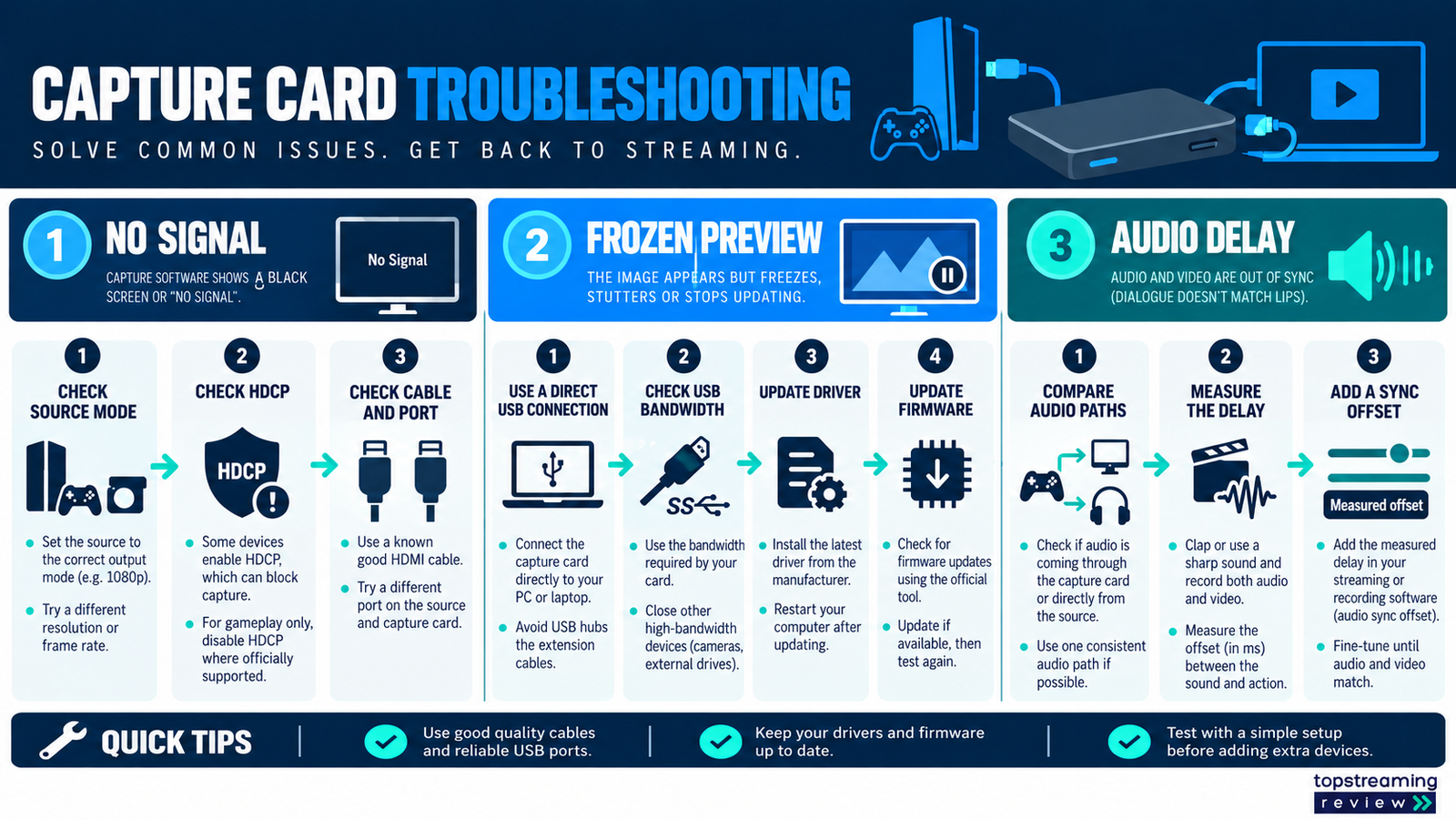
No signal often comes from HDCP, an unsupported mode, a cable issue or the wrong input. Disable protected-content settings only where the platform allows it and never attempt to capture protected media.
A black or frozen preview can point to USB bandwidth, a hub, driver or firmware. Connect the card directly, try a documented port, reduce the capture mode and update official software. If passthrough works but OBS does not, the source-to-display path is intact and the problem is more likely on the capture-to-computer side.
Audio delay appears when video processing and microphone paths have different latency. Measure with a clap or visible cue, then add a controlled sync offset. Do not keep changing several delays during a live show.
How we evaluated these capture cards
This is a specification-based buying guide, checked against manufacturer documentation in October 2026. We compared interface requirements, supported modes and workflow fit. We have not performed hands-on laboratory testing of these eight devices, and the recommendations should not be read as measured stability or latency results.
Prices, firmware and supported modes can change. Confirm the exact model, region, operating system, source device and desired resolution before purchase.
How to test your setup before going live
Use this repeatable check after installation or a firmware change. Record the card model, hardware revision, OS, firmware, USB or PCIe connection, source mode and OBS settings so a failure can be reproduced.
| Test | What to verify | Record |
|---|---|---|
| Display modes | Try the required refresh rate, HDR and VRR separately, then together where officially supported. | Working combinations and any downgrade |
| Capture load | Record a representative 30-minute session; inspect OBS statistics and the saved file for freezes or dropped frames. | Mode, dropped frames, CPU/GPU load |
| Audio sync | Record a visible clap and check game, chat and microphone routing. | Measured offset for each route |
| Recovery | Restart OBS and reconnect the source; confirm the chosen mode returns. | Any manual steps required |
These are suggested user acceptance tests, not results from a TSR hands-on test.
Frequently asked questions
Do I need a capture card for streaming?
You need one when video must move from a console, camera or second computer into streaming software on another computer. A single-PC gaming stream can usually capture the game internally.
Is USB or PCIe better for capture?
USB is portable and works with laptops. PCIe is cleaner for a permanent desktop and avoids an external USB connection. Image quality depends on the supported mode and complete system, not the connector category alone.
Can a capture card stream 4K to Twitch or YouTube?
A card can deliver 4K video to the computer, but the platform, encoder, bitrate and internet connection determine the broadcast output. Many creators use 4K passthrough or recording while streaming at 1080p.
Does a capture card reduce gaming performance?
Console capture normally has little effect on console performance. In a dual-PC setup, the gaming computer still outputs an additional display signal. Incorrect cloning, scaling or refresh settings can affect the experience.
Can I use a capture card with a camera?
Yes, if the camera provides a compatible clean HDMI output and can run continuously. Camera-focused devices such as Cam Link 4K or Magewell models may be simpler than a gaming card.
Related TSR Guides
Explore our creator tools hub for cameras, audio and streaming equipment. Our streaming encoder tools guide covers the next stage after capture.
Build the rest of your streaming setup
CAMERA SETUP
Choose your camera
Compare camera types, clean-HDMI needs and accessories.
Read camera guide →AUDIO SETUP
Plan your microphone
Choose USB or XLR input and avoid overlooked audio costs.
Read microphone guide →AFTER CAPTURE
Choose an encoder
Connect the captured signal to your streaming output.
Read encoder guide →


Leave a Reply