Last Updated on October 6, 2026
The best video encoding software for most streamers is OBS Studio because it is free, mature and flexible. vMix is the stronger choice for Windows-based multi-camera production, while Wirecast suits teams that need polished event workflows on Windows or macOS. Streamlabs Desktop and XSplit reduce setup friction for creators, and FFmpeg is the best fit for scripted or automated encoding.
The right choice depends less on the longest feature list and more on the job you need to complete. A solo creator, a church production team and a sports broadcaster may all send an H.264 stream, but they need very different control surfaces, redundancy plans and operator skills.
Quick Picks
BEST FREE
OBS Studio
Flexible scenes and profiles for creators who can own setup and testing.
WINDOWS EVENTS
vMix
Multi-camera production depth; match inputs, replay and calls to the edition.
CROSS-PLATFORM EVENTS
Wirecast
An integrated operator workflow for teams using Windows or macOS.
CREATOR CONVENIENCE
Streamlabs Desktop
Built-in alerts and overlays; test resource headroom on your own PC.
FAST WINDOWS SETUP
XSplit Broadcaster
A polished scene workflow; check free, premium and commercial-use limits.
AUTOMATED PIPELINES
FFmpeg
Repeatable command-line encoding with logging, monitoring and recovery.
TSR WORKFLOW LAB
Find your encoder by workflow
Choose the job first. Open a path to see the starting point and its operating trade-off.
I switch scenes during a creator stream
Start with OBS Studio for control and a free base. If alerts and overlays drive preparation, compare Streamlabs Desktop; for straightforward Windows operation, consider XSplit.
Read OBS Studio · Read Streamlabs Desktop · Read XSplit Broadcaster
I operate a multi-camera event
On Windows, shortlist vMix and match its edition to your inputs and replay needs. For a team using macOS or Windows, shortlist Wirecast and check the selected plan.
I need repeatable, automated encoding
Start with FFmpeg when a technical owner can maintain commands, logs and recovery. It is a delivery pipeline rather than a camera-switching interface.
What Video Encoding Software Actually Does
Encoding software converts uncompressed or lightly compressed camera, screen and media sources into a compressed stream or recording. It combines a video codec, audio codec, bitrate, frame rate, resolution and delivery protocol into an output that a platform or player can receive.
Encoding is only one part of a live workflow. The software may also switch scenes, mix audio, add graphics, receive remote guests or record isolated sources, but those production features are not the encoder itself. Keeping that distinction clear prevents teams from buying a complex live-production suite when a simple encoder would do.
Software encoder or hardware encoder?
A software encoder runs on a computer and uses the CPU, GPU or both. It is flexible and easy to update, but it shares resources with the game, presentation, graphics and other applications. A dedicated hardware encoder separates that workload and can improve operational reliability, but it adds cost and may offer fewer creative tools.
For a single-PC gaming setup, GPU encoding is usually the practical starting point because it protects CPU headroom. For a venue that cannot risk a desktop crash during a paid event, a dedicated hardware path or a separate encoding computer may be worth the extra complexity.
Video Encoding Software Comparison
| Software | Best for | OS | Cost model | Main constraint |
|---|---|---|---|---|
| OBS Studio | Flexible creator and professional workflows | Windows, macOS, Linux | Free, open source | Requires configuration discipline |
| vMix | Windows multi-camera and event production | Windows | Edition based | Windows only; features vary by edition |
| Wirecast | Cross-platform events and team workflows | Windows, macOS | Subscription | Ongoing cost and plan differences |
| Streamlabs Desktop | Creator overlays and engagement tools | Windows, macOS | Free plus paid services | Heavier integrated environment |
| XSplit Broadcaster | Fast Windows scene setup | Windows | Free; paid subscription or lifetime license | Windows and plan limits |
| FFmpeg | Automation and technical pipelines | Windows, macOS, Linux | Free, open source | Command-line skills required |
Pricing and feature packaging change frequently. Treat the table as a workflow guide and confirm current plans, supported codecs and operating systems on each vendor’s official site before purchase.
1. OBS Studio
Best Free Encoder for Flexible Workflows
OBS Studio remains the default recommendation because it gives creators full control without a license fee. It runs on Windows, macOS and Linux, supports scene-based production and can use common hardware encoders when the computer and driver support them.
Its real advantage is not that it is easy. It is that a team can start with one camera and grow into a carefully designed production without changing applications. Profiles and scene collections also help separate different shows, clients or output targets.
OBS demands discipline. Plugins can solve specific problems, but every added dependency increases the number of things that must be tested before a live event. Multi-destination delivery may also be cleaner through a relay service than through several simultaneous local outputs.
Best fit and trade-off
Use OBS for creator streams, education, webinars and budget-conscious professional work where someone can own configuration and testing. Avoid treating it as a zero-maintenance appliance. Its flexibility rewards documentation, version control for profiles and a repeatable preflight.
2. vMix
Best for Windows Multi-Camera Production
vMix combines encoding with switching, graphics, recording, remote contribution and production controls. It makes sense when the operator must manage several cameras or program elements from one Windows workstation and needs a deeper production surface than a basic scene switcher.
The buying decision is edition-specific. A church or conference team may need only a modest input count, while sports production can depend on replay, multiple outputs or more advanced recording. Compare the exact edition against your input, resolution, call and replay requirements instead of assuming every capability is included.
Operational reality
vMix can replace several separate tools, but consolidation also concentrates risk. Build a known-good Windows image, keep spare capture paths and test the full show file with the actual cameras, audio interfaces and network route.
3. Wirecast
Best Cross-Platform Event Workflow
Wirecast is aimed at teams that want an integrated production and encoding environment with a more guided operating model than a heavily customized OBS build. It supports Windows and macOS and is well suited to corporate events, education, houses of worship and recurring live programs.
Its value is strongest when built-in production tools, destination management, remote guests and vendor support reduce operating effort. The trade-off is an ongoing software cost and the need to confirm which features belong to the selected plan.
Wirecast is not automatically more reliable simply because it is paid. Reliability still depends on capture drivers, computer headroom, storage speed, network stability and a rehearsed recovery plan.
4. Streamlabs Desktop
Best for Creator Convenience
Streamlabs Desktop packages scene production with alerts, overlays, chat and creator-oriented services. It can shorten the path from installation to a branded stream, especially for Twitch and YouTube creators who would otherwise assemble several separate tools.
That convenience can increase resource use and platform dependence. A creator with a modest PC should compare a clean OBS setup against Streamlabs using the same game, resolution and encoder. The better interface is not helpful if it removes the GPU headroom needed for stable frame delivery.
When it earns its place
Choose Streamlabs when integrated engagement tools save meaningful preparation time. Choose OBS when you want a leaner base, broader customization or tighter control over every component.
5. XSplit Broadcaster
Best for Fast Windows Setup
XSplit Broadcaster is a practical middle ground for Windows users who prefer a polished scene workflow and direct platform integrations. It works well for straightforward creator, presentation and small event productions where ease of operation matters more than an extensive open plugin ecosystem.
The main constraint is platform and plan dependency. Confirm output resolution, branding, recording and multi-streaming limits before standardizing a workflow. Teams should also compare the recurring cost against the time saved during setup and training.
The official XSplit plan comparison includes a free tier, paid subscriptions and a lifetime option. Check watermark restrictions and commercial-use eligibility as well as output features.
6. FFmpeg
Best for Automation and Technical Pipelines
FFmpeg is different from the other picks. It is a command-line media framework rather than a visual live-production studio. That makes it a poor choice for an operator who needs to switch cameras manually, but an excellent choice for repeatable conversions, headless encoding, contribution gateways and automated pipelines.
A scripted FFmpeg workflow can be reviewed, versioned and deployed consistently. It can also fail in ways that are difficult for a nontechnical operator to diagnose. Use it when the team can own command syntax, logging, monitoring and recovery.
Example use case
A media team might use a visual production tool for switching and send a clean program feed into FFmpeg for a controlled recording or secondary output. This separates creative operation from a technical delivery task without forcing one application to do everything.
Choose by Workflow, Not Brand
| Workflow | Recommended starting point | Why | Watch for |
|---|---|---|---|
| Solo creator or educator | OBS Studio | Free, flexible and scalable | Plugin and profile maintenance |
| Windows multi-camera event | vMix | Integrated switching and production depth | Edition requirements and system load |
| Mac or Windows event team | Wirecast | Guided production workflow | Subscription cost |
| Creator-first branded stream | Streamlabs Desktop | Integrated alerts and overlays | Resource headroom |
| Simple Windows production | XSplit Broadcaster | Faster onboarding | Plan limits |
| Automated encoding pipeline | FFmpeg | Repeatable, versionable commands | Technical ownership and monitoring |
The hidden cost is operator effort. Free software can be expensive when every show requires manual repair, while paid software can be economical if presets, support and training reduce mistakes. Evaluate total operating effort across setup, rehearsal, show operation, updates and incident recovery.
For a broader studio shortlist beyond encoding alone, compare our live streaming software guide. If registration, presenters and attendee interaction drive the project, use the webinar streaming software comparison alongside this encoder checklist.
Codec and Hardware Choices
H.264 is still the compatibility baseline
H.264 remains the safest live-delivery choice when a platform, device or contribution path has mixed compatibility. It is widely accelerated in CPUs and GPUs and accepted by major live platforms.
HEVC and AV1 need an end-to-end check
HEVC and AV1 can improve compression efficiency, but the software menu alone does not prove the full workflow supports them. Check the GPU generation, encoder implementation, capture format, streaming platform, playback devices and recording requirements. A codec that saves bandwidth but breaks ingest compatibility is not an upgrade.
GPU encoding versus x264
GPU encoding moves most compression work away from the CPU and is usually the sensible choice for a one-computer production. CPU-based x264 can still be valuable when the system has dedicated CPU headroom or a specific quality and compatibility requirement. The correct choice is the one that remains stable under the full production load.
TSR WORKFLOW LAB
Codec decision gates
A codec option in the software is only the first checkpoint. Use this sequence before changing the live output.
- START · H.264
Use the compatibility baseline when the destination or audience includes mixed devices.
- GATE 1 · Destination
Before selecting HEVC or AV1, confirm that the actual ingest route accepts it.
- GATE 2 · Hardware and recording
Confirm the encoder implementation, GPU support and required recording format.
- GATE 3 · End-to-end rehearsal
Test playback, motion, audio sync and recovery under the full show load. Proceed only when every checkpoint passes.
Need the underlying format comparison? Read our H.264, HEVC and AV1 guide.
Baseline Live Encoding Settings
| Output | Resolution / Frame Rate | Video codec | Starting bitrate approach | Keyframe |
|---|---|---|---|---|
| General live stream | 720p30 | H.264 | Use platform guidance and preserve upload headroom | Usually 2 seconds |
| Standard HD | 1080p30 | H.264 | Validate motion quality with a private test | Usually 2 seconds |
| High-motion HD | 1080p60 | H.264 or supported AV1 | Increase only within platform and network limits | Usually 2 seconds |
| Higher resolution | 1440p or 4K | Platform-supported H.264, HEVC or AV1 | Confirm ingest, hardware and playback support | Follow destination guidance |
Platform limits take priority over generic advice. YouTube publishes encoder guidance by resolution and frame rate, while Twitch publishes broadcasting guidance for its ingest workflow. Use the destination’s current documentation, then test below the absolute capacity of your connection.
A conservative starting rule is to leave upload headroom for network variation, monitoring and return feeds. Do not set the video bitrate equal to the result of one speed test.
TSR WORKFLOW LAB
Follow the signal, then isolate the fault
01 · RECEIVE
Camera, screen or media
Confirm the source reaches the computer. For HDMI sources, compare capture cards for streaming.
02 · PRODUCE
Switch, mix and add graphics
Build the program feed. Our live streaming software comparison covers the wider studio workflow.
03 · ENCODE
Compress the program feed
Select the codec, resolution and bitrate. Check the streaming codec guide for compatibility trade-offs.
04 · DELIVER
Send to the destination
Validate ingest and upload stability; monitor the returned stream, not only the local preview.
A Reliable Preflight Workflow
- Reboot or return the encoding computer to a known clean state.
- Confirm camera, capture-card and audio device inputs.
- Verify resolution, frame rate, color format, codec, bitrate and keyframe interval.
- Record locally for several minutes and check audio sync.
- Run an unlisted or private test to the actual destination.
- Watch encoder load, render lag, dropped network frames and audio levels.
- Test the failure path, including reconnect behavior and backup content.
- Save the approved profile and record the software, driver and plugin versions.
A short test with a static talking head is not enough for a sports, gaming or graphics-heavy show. Test the most complex scene, fastest motion and highest audio load expected during the real production.
Troubleshooting Encoding Problems
TSR WORKFLOW LAB
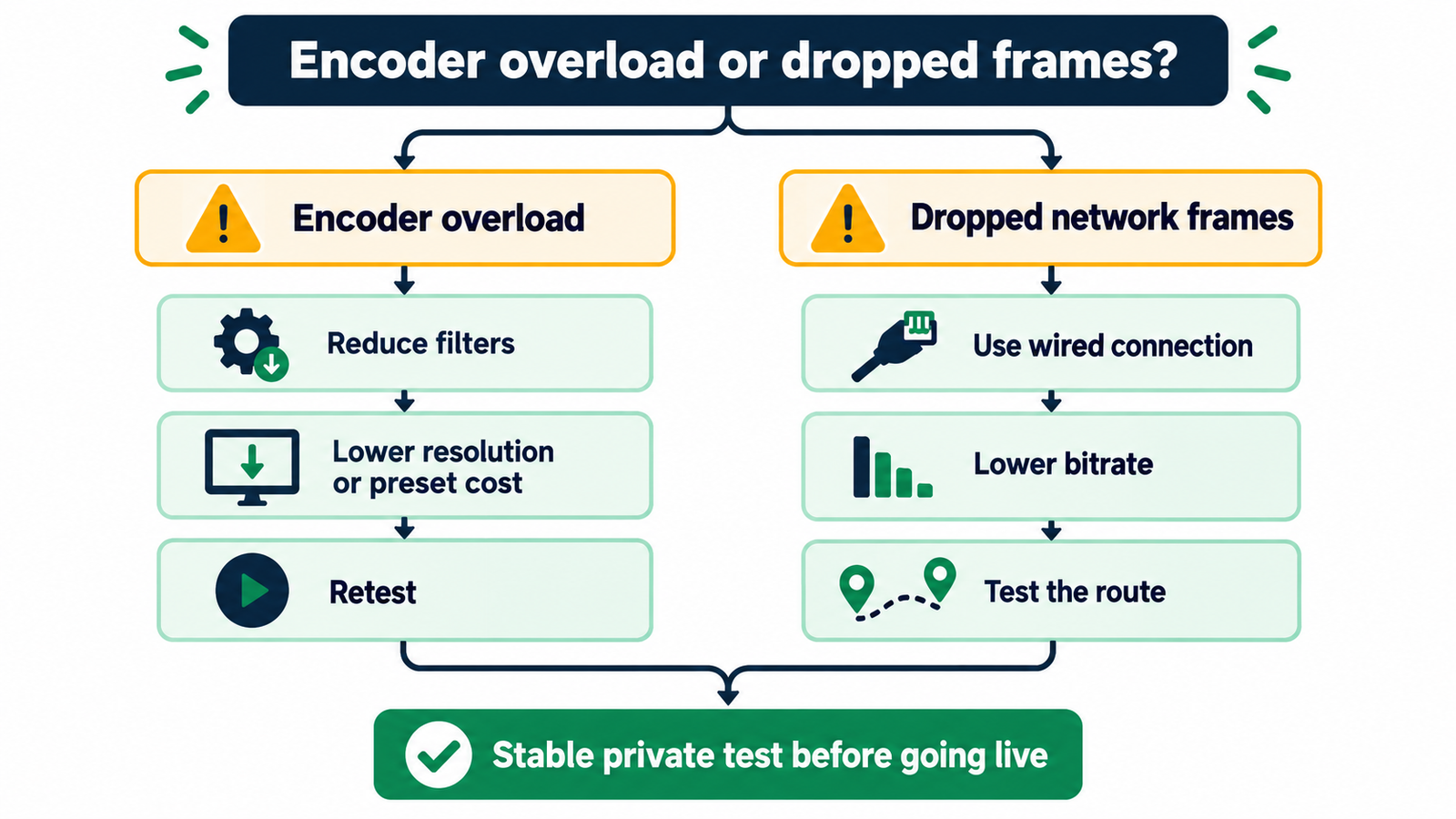
Two paths to a stable stream
Start with the reported symptom: processing lag, network loss, or both?
PATH A · Processing lag
- Inspect render lag and encoder overload separately.
- Reduce scene/filter load for render lag; reduce encoding preset cost or output load for encoder overload.
- Retest the busiest scene with recording and streaming active.
PATH B · Network frame loss
- Check sustained upload and the route to the actual destination.
- Lower bitrate within platform guidance and test a wired connection.
- Retest delivery while watching network frames and the returned stream.
Both paths meet here: repeat the full-load rehearsal, check audio sync and save the stable profile. If both symptoms occur, investigate both branches.
| Symptom | Likely cause | First action |
|---|---|---|
| Encoder overload | CPU or GPU cannot process frames in time | Reduce output load, filters or preset cost |
| Dropped network frames | Unstable route or bitrate above sustained upload | Lower bitrate and test wired connectivity |
| Blurry motion | Bitrate too low for scene complexity | Test a higher allowed bitrate or lower resolution |
| Audio drift | Mismatched sample rates or processing delay | Standardize devices to 48 kHz and retest |
| Intermittent failure | Driver, plugin or capture-device conflict | Reproduce with a clean profile and fewer dependencies |

When a Hardware Encoder Is the Better Choice
Move beyond a software-only workstation when the production must continue even if the presentation or switching computer fails, when operators need appliance-like controls, or when a venue runs frequent long events with little tolerance for driver and application conflicts.
A hardware encoder does not remove the need for network redundancy, audio monitoring or rehearsals. It changes the failure surface. The strongest design is often a simple primary path with a clearly understood backup rather than two complicated systems that share the same weak point.
Related TSR Guides
SIGNAL DELIVERY
Streaming encoder tools
Compare software and dedicated hardware paths.
Read guide →CODEC CHOICES
Video codecs for streaming
Understand H.264, HEVC and AV1 compatibility.
Read guide →CAMERA INPUTS
Capture cards for streaming
Connect cameras and consoles to your workstation.
Read guide →Frequently Asked Questions
What is the best free video encoding software?
OBS Studio is the best free choice for most people. It supports the major desktop operating systems, scene-based production, recording and common hardware encoders, but it requires careful setup and testing.
Is a GPU encoder better than CPU encoding for streaming?
For most single-computer streams, a GPU encoder is the practical choice because it preserves CPU headroom. CPU encoding can still work well on a dedicated system or when a particular x264 preset is required.
Do I need AV1 for a professional stream?
No. AV1 can improve efficiency when the complete workflow supports it, but H.264 remains the safest compatibility baseline. Choose AV1 only after checking the encoder, destination and viewer playback path.
Can encoding software replace a capture card?
No. Encoding software processes a source that the computer can already receive. A capture card is still needed for many cameras, consoles and external HDMI sources.
How much upload speed should I leave unused?
Leave enough headroom for network variation and other traffic. A practical starting point is to keep the total stream well below measured upload capacity, then validate stability with a sustained test to the real destination.


Leave a Reply