
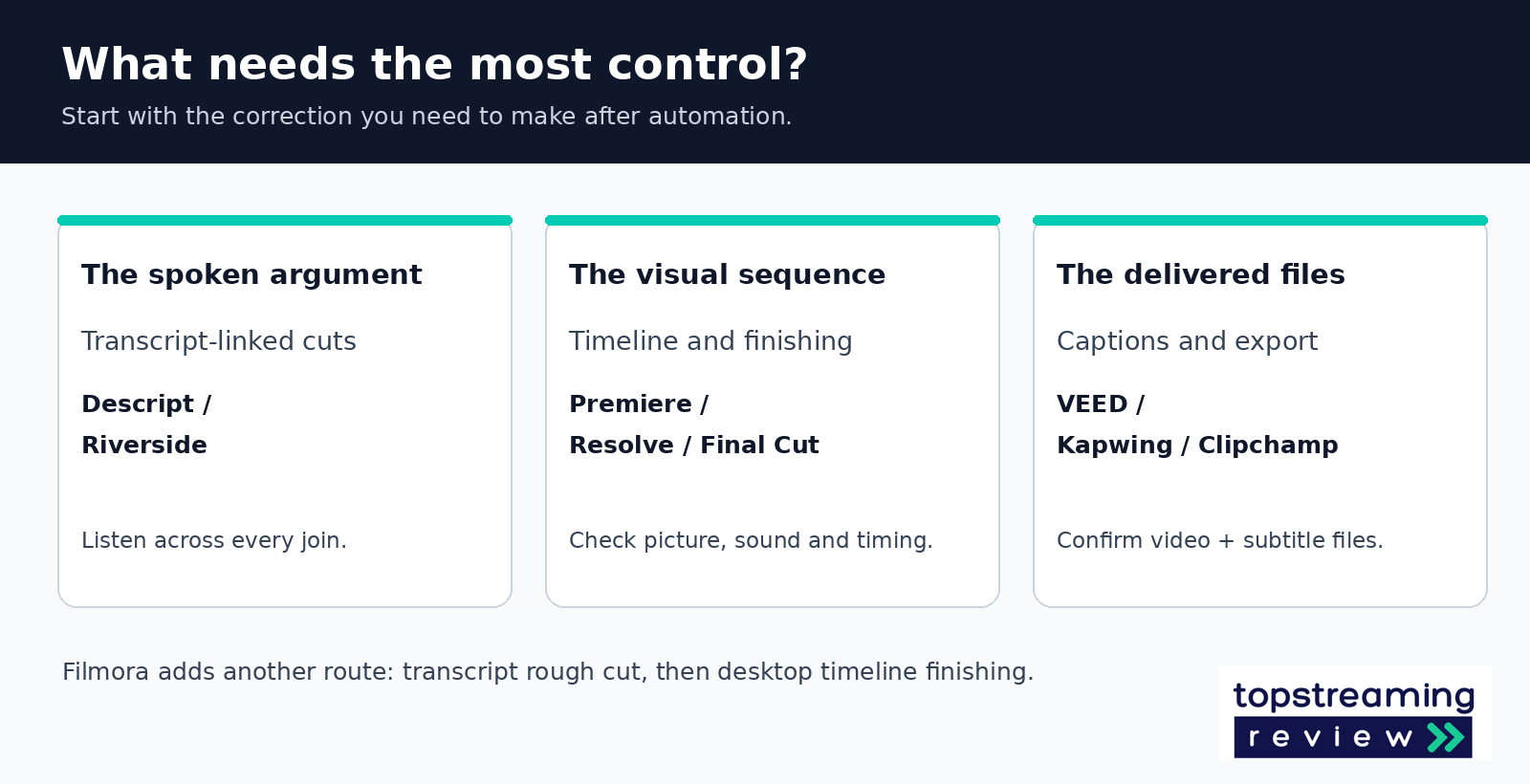
Start with Descript if most of your editing decisions are about spoken words. Shortlist Premiere or DaVinci Resolve when the picture, sound mix and timeline need detailed control. Final Cut Pro belongs on that shortlist for Mac creators whose hardware supports the AI feature they want. Browser editors are worth considering when your job centers on captions, shared access and straightforward delivery.
The useful question is what happens after the automatic cut. Can you restore a pause, move a caption, correct a crop and export the files you need? An AI editor earns its place when those corrections remain manageable, not simply when it creates a first draft.
This is a research-based buying guide grounded in official product documentation. We have not run matched hands-on tests of these nine editors, so the recommendations describe workflow fit rather than measured speed or accuracy rankings. For planning, thumbnails and channel research beyond the edit, use our broader guide to AI tools for YouTube creators.
In this article
- Compare the editing job first
- Editors for spoken videos
- Editors for detailed visual work
- A desktop route from rough cut to finishing
- Browser editors for captioned delivery
- Count source processing and final delivery separately
- Run one representative edit before paying
- Which editor should you start with?
- FAQs
Compare the editing job first
| Editor | Documented editing lever | Best-fit job: TSR judgment | Boundary to verify |
|---|---|---|---|
| Descript | Transcript-linked media cuts | Spoken lessons and commentary | Media minutes and AI credits are separate |
| Riverside | Transcript plus per-speaker tracks | Recurring interviews and podcasts | Imported source and track entitlements |
| Adobe Premiere | Text rough cut within a full timeline | Detailed edits with transcript assistance | Final captions are a separate workflow |
| DaVinci Resolve | Studio text editing and AI tools | Color/audio/visual finishing | Free editor is not all Studio AI |
| Final Cut Pro | Transcript Search and Visual Search | Mac footage-library workflows | These search tools require Apple silicon |
| Filmora | Text cut followed by Export to Timeline | Guided desktop rough cut and finish | Major-version upgrades and AI allowance |
| VEED | Low-confidence caption flags/dictionary | Browser caption correction | Separate subtitle download entitlement |
| Kapwing | Shared workspace and Brand Kit | Team adaptation of shared assets | Paid seats do not multiply workspace quota |
| Clipchamp | Preview/ignore pauses over 3 seconds | Simple edits with long speech gaps | Account version and intentional pauses |
These tools belong to different kinds of workflow. Descript and Riverside put spoken content close to the center of the edit. Premiere, Resolve and Final Cut give the timeline a larger role. Filmora bridges transcript cutting and desktop finishing, while the browser options below put caption correction, workspace sharing and output entitlements at the center of the comparison.
Keep one application responsible for the main edit unless a second tool solves a specific remaining problem. Passing a flattened MP4 between several editors can leave you correcting the same captions and crops more than once.
Editors for spoken videos
1. Descript: build the cut around the words
Descript’s text-based editing links the transcript to the recording: deleting words removes the corresponding media, and moving a sentence moves its footage. That is a useful starting point for an interview, lesson or commentary video where the spoken argument determines what stays. You can judge the wording before concentrating on individual timeline cuts.
The text is also where an apparently tidy edit can hide a problem. Removing a qualification may change an answer, while taking out every pause can flatten the speaker’s delivery. Read for meaning, then listen across the joins. A transcript is an editing surface, not proof that the resulting conversation still makes sense.
Budget from the material you bring in. Descript separates media minutes for transcription and recording from AI credits for generative work. Its pricing page lists Hobbyist with 10 media hours and 1080p export, while Creator lists 30 media hours and 4K. A creator who only needs a clean spoken edit should compare those entitlements before paying for generation capacity. Visually dense sequences with precise overlays are a reason to evaluate a conventional timeline alongside it.
2. Riverside: retain control of each speaker
Riverside’s conversation editor combines transcript editing with per-speaker tracks, layouts and audio adjustments. Its documented multitrack workflow matters when a guest coughs while the host is speaking, or one voice needs a different level: the correction can target that participant rather than the whole mix.
That makes it a sensible shortlist for recurring interviews and video podcasts, especially when recording and editing already happen in Riverside. For imported recordings, verify which track-separation tools and plan entitlements apply to the source you have. An original multitrack recording and a single already-mixed file are different starting points; do not assume either gives you identical control.
Editors for detailed visual work
3. Adobe Premiere: keep AI inside the main timeline
Premiere’s Text-Based Editing lets you assemble and adjust a rough cut through a transcript while retaining the wider editing workflow. Adobe makes an important distinction: Text-Based Editing is not the captions workflow. Generate captions from the final edited sequence rather than assuming the source transcript is already the finished subtitle track.
For a hypothetical tutorial with several retakes, use the transcript to find the explanation you want, refine the picture and timing, then generate and correct the final captions. This order avoids polishing caption timing around passages you later remove.
Generative Extend solves a narrower problem than its name might suggest. Adobe says it can extend video by up to two seconds and audio by up to ten, but cannot create or extend spoken dialogue; clips containing music are also ineligible. It can help with a short visual or ambient hold, not supply a missing sentence from an interview. That boundary is a useful reason to keep the original recording and distinguish an editorial cut from newly generated material.
4. DaVinci Resolve: distinguish the editor from Studio’s AI
Resolve is worth considering when the same project needs editing, color work, sound and effects. The purchase decision should start with the edition. Blackmagic’s Studio page separates the capable free application from paid tools such as text-based editing, Magic Mask and additional AI processing. A roundup calling Resolve a free AI editor does not establish that the particular shortcut you want is free.
Blackmagic describes the free version as supporting finishing up to Ultra HD 3840 × 2160 at 60 fps. That can already cover a YouTube delivery requirement, but it says nothing by itself about whether a Studio-only feature is available.
5. Final Cut Pro: find the shot before rebuilding the edit
Apple documents Transcript Search for locating spoken words or phrases, and Visual Search for locating objects or actions through natural-language searches. Both require a Mac with Apple silicon. For a creator with a large library of interviews and B-roll, this targets a different delay from automatic cutting: finding the right material in the first place.
Check the requirement for the specific feature, not only whether Final Cut launches. Apple’s AI Transcribe to Captions also has Apple-silicon and operating-system requirements. An older Mac is therefore a reason to inspect compatibility before buying around an advertised AI capability. Windows users should evaluate another editor on this list.
A desktop route from rough cut to finishing
6. Filmora: use transcript cutting as a first pass
Filmora’s documented text-editing process ends with Export to Timeline. You remove unwanted text or silent passages in the text-editing window, then move the result into the main timeline for picture, audio, effects and final export. That is a clear division of work for a creator who wants transcript assistance but still expects to finish the video visually.
For a screen tutorial, a silent interval may be the moment the viewer needs to inspect a menu or follow a cursor. Preview those passages before accepting bulk silence deletion. The time with no speech can still carry the instruction.
Filmora’s perpetual and subscription options also need different expectations. The perpetual plan covers updates within the purchased major version, not upgrades to future major versions. AI-credit access is another part of the purchase to inspect separately. Avoid translating a one-time software price into a promise of unlimited future AI work. Compare the plan and asset terms on the current store page, especially if sponsor footage or licensed music will be part of the video.
Browser editors for captioned delivery
7. VEED: inspect the correction controls and subtitle files
VEED’s subtitle editor flags low-confidence words and supports a dictionary for terms you want recognized. Those are concrete controls to try with names, product codes and the specialist vocabulary in your own videos. They provide a correction workflow; they do not establish an accuracy advantage over the other editors.
Pay attention to the output as well as the caption preview. VEED’s help page names Pro and Enterprise for subtitle-file downloads. Its export guide separately places 1080p on Creator and up to 4K on Pro, Studio and Enterprise. A higher-resolution video entitlement is therefore not enough evidence that the separate SRT file you need is included. Confirm the download entitlement for the exact plan being offered.
This matters if your job includes both a captioned social clip and a clean master with selectable YouTube captions. Finish the video cuts before the final subtitle pass; VEED documents timestamp mismatches after later edits. For a broader view of short-form workflows, compare our TikTok editing tools guide.
8. Kapwing: price the shared workspace and the work
Kapwing’s Pro offering includes a shared workspace, Brand Kit and advertised exports up to 4K, with finished projects up to 120 minutes and files up to 6 GB. That combination is worth evaluating when several people adapt the same approved assets into different videos.
The distinction to watch is between people and processing. Kapwing bills paid workspace members per seat, while its subscription FAQ says usage limits are shared per workspace rather than multiplied by the number of seats. Adding another editor does not automatically give the team another complete allowance for AI work.
A two-person team can test the real handoff: one person trims the interview, the other corrects captions and brand elements, and the delivery owner exports the required files. Confirm the workspace allowance against the amount of source material both people will process. Avoid this documented export envelope if you need one continuous finished video longer than two hours. Treat free access as a small evaluation: the pricing and help pages contain conflicting free-limit descriptions.
9. Clipchamp: remove long gaps without cutting every breath
Microsoft’s silence-removal guide specifies pauses longer than three seconds. You can preview suggestions, ignore a pause, remove it individually or remove the detected set. That gives the tool a defined role in a simple lesson or talking-head edit with long breaks.
A shorter hesitation may sit outside that threshold. A five-second pause while a viewer reads a demonstration, on the other hand, may be intentional: preserve it with Ignore rather than deleting the whole detected set.
Clipchamp’s autocaptions can be edited, hidden from the picture and downloaded as an SRT file. Check Microsoft’s personal-versus-work account comparison before assuming that a feature shown in one account is available in another.
Count source processing and final delivery separately
Imagine four 45-minute recordings that each become an 18-minute YouTube video. The month contains 180 minutes of source material and 72 minutes of finished video. If a plan meters transcription from the full inputs, the smaller delivery total is the wrong number to use for that allowance.
| Planning question | Hypothetical workload | What to confirm |
|---|---|---|
| How much source is transcribed? | 4 recordings × 45 minutes = 180 minutes | Whether the meter covers the whole source or selected portions |
| How much video is delivered? | 4 final videos × 18 minutes = 72 minutes | Resolution, watermark and each project’s export cap |
| What extra AI work runs? | Only the operations you actually use | Credit cost, scope and reset terms |
| Who revises and delivers? | Your actual editor/reviewer roles | Paid seats, permissions and shared usage |
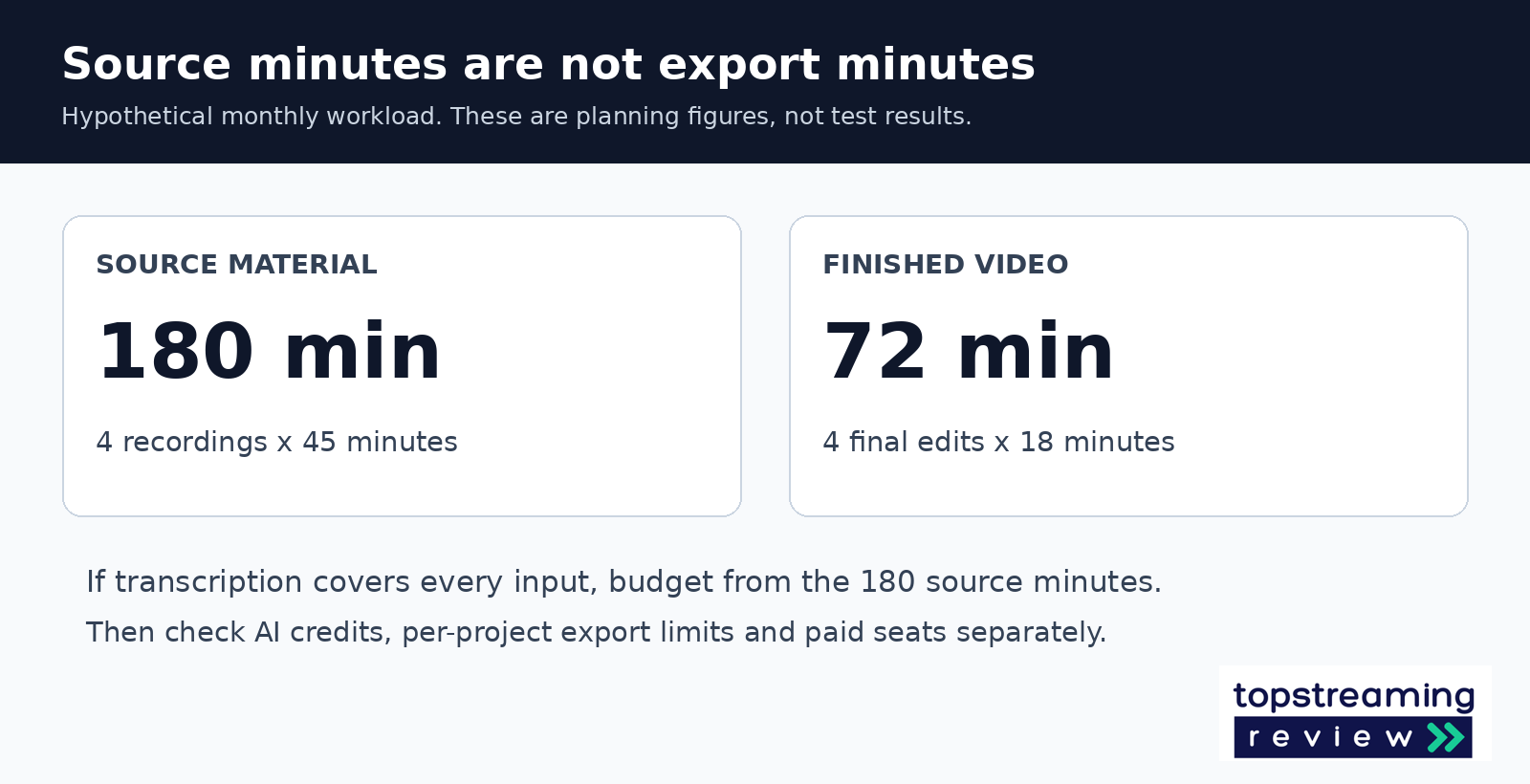
Write down the scope of each allowance before comparing prices. ‘Ten hours of media’ and ‘1,000 AI credits’ are different units, while a two-hour export cap limits a finished project rather than the monthly workload. A short promotional price does not resolve any of those differences.
Likewise, a 4K export option cannot restore unreadable text in a blurry screen recording. Establish a clear source first; our iPhone screen-recording guide covers common audio and capture issues, and our audio-extraction guide helps when you need an existing recording’s separate sound track. Dubbing a new spoken language is a different job again, covered in our AI video dubbing comparison.
Run one representative edit before paying
Use footage from your normal production, including an awkward join, a specialist term and a moment where the picture matters without speech. A clean demo recording hides the corrections that will determine whether the editor suits you.
- Make a short sequence that preserves the speaker’s meaning. Undo an automatic cut and confirm that restoring the material is straightforward.
- Inspect speech, music and picture around the joins. Leave deliberate pauses intact, and verify that a vertical crop keeps the object or screen detail being discussed.
- Generate captions after the main cuts. Correct names and timing, then export both a captioned video and a clean master or subtitle file if the channel requires them.
- Reopen the editable project and perform a handoff if someone else will revise it. Confirm what remains editable and what only survives as pixels in an exported MP4.
- Compare the complete effort and the plan limits. Count preparation, correction, export and handoff time, rather than timing only the automatic action.
For a hypothetical time check, suppose your normal edit takes 120 minutes. The AI-assisted route takes 60 minutes to prepare and edit, another 35 to correct, and 15 to export and hand off. The saving is ten minutes, not sixty. Those are example figures, not TSR test results. A useful tool should improve the whole job enough to justify its cost and any new review work.
Which editor should you start with?
For spoken lessons and commentary, compare Descript’s transcript workflow with Riverside if per-speaker recording and editing are central. For visually demanding work, begin with the timeline you can control and support: Premiere, Resolve or Final Cut on a compatible Mac. Filmora is another desktop route when a transcript rough cut followed by timeline finishing matches how you work.
For browser-based caption delivery, inspect VEED’s download entitlements, Kapwing’s workspace limits or Clipchamp’s defined silence-removal behavior. Keep the shortlist to the options that meet your device, source and delivery requirements. You do not need a new editor simply because a tool elsewhere has another AI feature.
FAQs
Is a free video editor the same as free AI editing?
No. A free editing application may reserve particular AI tools for a paid edition, or meter them separately. Resolve’s free-versus-Studio distinction is one example. Verify the specific operation you want rather than relying on a ‘free AI editor’ label.
Should I pay for 4K export for every YouTube video?
Only when it serves your recording and delivery requirements. Resolution does not replace readable source footage, accurate captions or a well-framed crop. For compression and playback compatibility, our video codec guide explains the separate role of encoding.
Can I trust automatic cuts without watching the result?
No. Watch and listen to the completed edit, including the transitions around removed passages. Captions can be correct while a shortened answer loses its qualification, or a technically valid crop can hide the demonstration. Those are editorial checks an export-success message cannot perform.
Related TSR guides
Plan the wider research, editing and publishing stack.
Read guide →Compare mobile, browser and desktop workflows.
Read guide →Evaluate spoken-language replacement workflows.
Read guide →


Leave a Reply