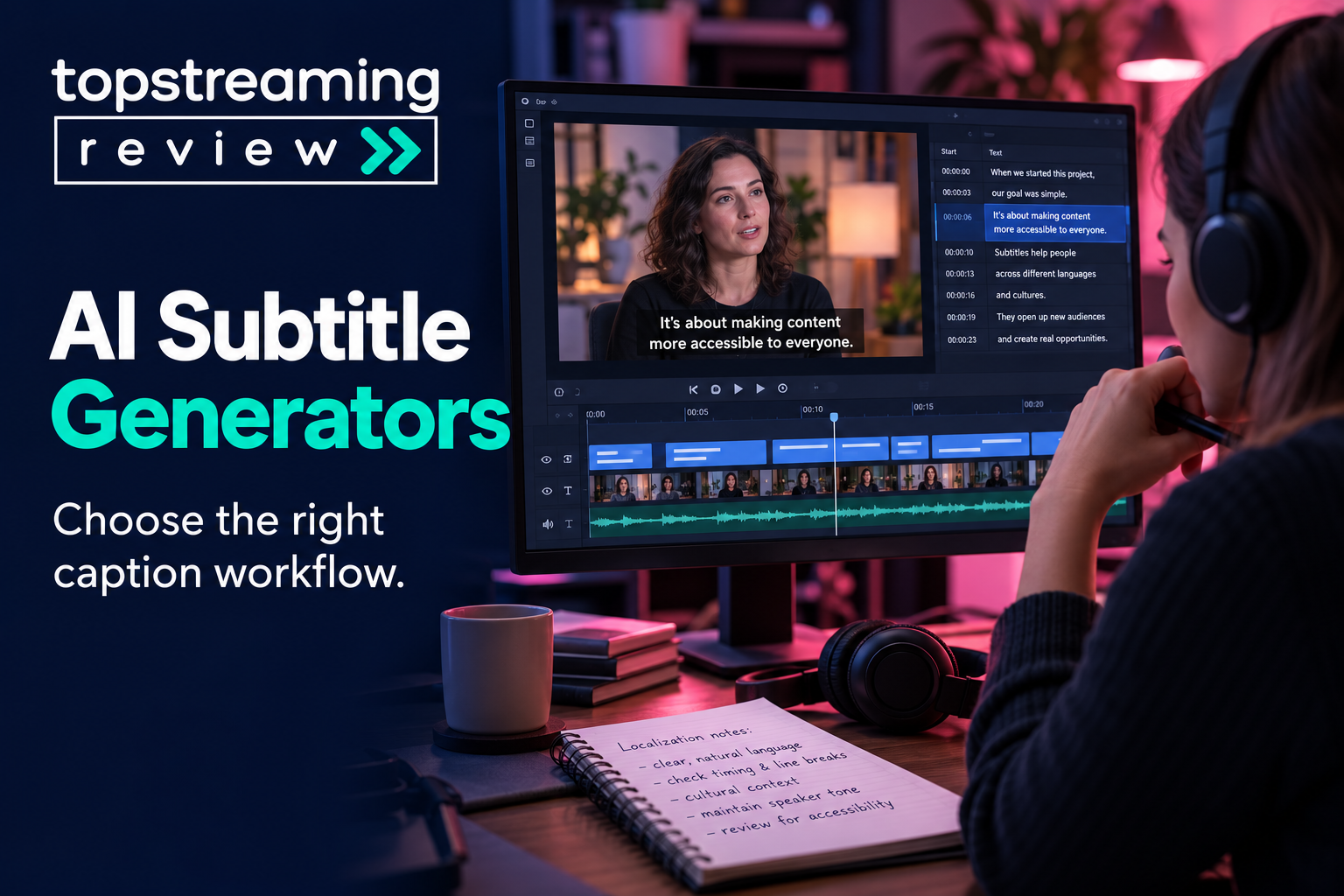
Start with VEED or Kapwing when subtitles belong inside a browser video edit, Descript when you edit through the transcript, and Happy Scribe when reviewed subtitle files are the main deliverable. Captions and Adobe Express suit styled on-screen text; YouTube Studio may be enough for a YouTube-only caption track.
This is a research-based editorial comparison of documented workflows. TSR has not run matched caption-accuracy or rendering-speed tests. Check the exact plan for subtitle-file downloads before paying.
In this article
- Best AI subtitle generators: quick picks
- Our practical shortlist
- First, subtitles and social captions are not exactly the same job
- What we looked for
- Seven tools by subtitle workflow
- Which AI subtitle generator should you choose?
- Do not choose based on “99% accuracy” alone
- A five-minute subtitle QA check before publishing
- AI subtitles vs AI dubbing
- Frequently asked questions
Best AI subtitle generators: quick picks
| Tool | Workflow fit | Check before buying |
|---|---|---|
| VEED | Browser video editing | Confirm paid SRT/VTT entitlement |
| Descript | Transcript-led editing | Check caption export and correction workflow |
| Kapwing | Shared browser projects | Subtitle downloads require a paid plan |
| Happy Scribe | Reviewed subtitle delivery | Budget language review and export requirements |
| Captions | Styled vertical captions | Check required output format on your device |
| Adobe Express | Short branded videos | Verify current video/language limits |
| YouTube Studio | YouTube caption tracks | Review and correct automatic captions |
Our practical shortlist
If you want one browser tool that can take subtitles from generation through styling and export, VEED is the easiest place to start. Descript becomes more interesting when the transcript is also your editing interface. Happy Scribe deserves attention when subtitle files, languages, and review are the work rather than a side feature. For short-form talking videos where the words themselves are part of the visual hook, Captions is a more natural fit.
First, subtitles and social captions are not exactly the same job
The terms are often used loosely, but the output changes what tool makes sense.
Subtitles primarily represent spoken dialogue, often so viewers can understand a different language or read along.
Closed captions can also include meaningful non-speech audio such as music or sound cues and can normally be switched on or off when delivered as a separate caption track.
Open captions are burned into the video. They are always visible. This is common in TikTok, Reels, Shorts, and other social content where creators want the text to be part of the design.
This guide is broader. We are looking at tools that can help creators generate, edit, translate, export, or publish subtitles as part of a repeatable video workflow.
Keep timed text such as SRT or VTT for destinations that support selectable tracks. Styling support varies.
Export words as part of the picture for a designed social clip. Viewers cannot switch that text off.
What we looked for
We compared tools around the decisions that actually change the workflow:
– Can you correct the transcript easily?
– Can you adjust timing?
– Can you export SRT or VTT when needed?
– Can you burn subtitles into the video?
– Does it support translation or multilingual output?
– Can you style subtitles for social video?
– Is subtitle generation part of a larger editor?
– Does the workflow make sense for one creator, a team, or localization work?
We do not treat vendor accuracy percentages as directly comparable test results. Different vendors publish different claims under different conditions, and real accuracy changes with audio quality, accents, overlapping speakers, background noise, names, and technical vocabulary.
Seven tools by subtitle workflow
1. VEED
Best for: the strongest all-rounder when subtitles are one part of the edit
VEED makes the most sense when you do not want “subtitle generation” to become its own separate workflow. The subtitle tools live inside a browser video editor, so the same project can move from transcription to correction, styling, translation, burned-in captions, and final video export. For social-first editing around these captions, compare our TikTok video editing tools.
That sounds like a small convenience until you are producing the same video in several formats. A YouTube tutorial might need a normal subtitle track, while the vertical cut needs large open captions and the translated version needs another language. Keeping those jobs around the same source project is where VEED earns its place here.
What we like most is not a single AI feature. It is the range of exits. Depending on the workflow and plan, creators can work toward a video with subtitles already burned in or take subtitle files such as SRT/VTT into another publishing or editing system. That makes VEED easier to recommend to a creator who does not yet know whether the final destination will be YouTube, social media, a course platform, or a client delivery.
Where we would hesitate
If subtitles are a formal deliverable and you spend more time reviewing terminology, speaker text, translations, and subtitle files than actually editing video, VEED’s breadth may be unnecessary. A more subtitle-focused environment such as Happy Scribe can feel less distracting. VEED documents subtitle-file downloads for Pro and Enterprise; confirm other tier entitlements directly. Kapwing identifies SRT/VTT/TXT download as a paid feature.
Best fit: creators, small marketing teams, and agencies that want subtitles inside an all-in-one browser video workflow.
2. Descript
Best for: choose it when the transcript is how you edit
Descript is the outlier in this list because we would not start by asking, “How good is its subtitle generator?” We would ask whether you like editing video by editing text. If your source is a video interview, our audio extraction guide explains how to prepare its audio track.
For interviews, podcasts, webinars, screen recordings, and talking-head videos, that approach can change the workflow. Once speech has been transcribed, removing or rearranging words in the transcript can also shape the underlying edit. Captions and subtitle export then sit on top of a transcript you were already using rather than being an extra task at the end.
This is particularly useful when subtitle corrections reveal editing problems. If a speaker repeats a sentence or a section needs tightening, you are already in the environment where that change can be made.
We would not buy Descript purely to make flashy captions for short social clips. Its real advantage appears when transcription, editorial cleanup, and video editing are tightly connected.
Best fit: podcasts, interviews, educational videos, webinars, and creators who prefer text-based editing.
A useful test before choosing it: edit one real five-to-ten-minute talking video in Descript. If editing through the transcript feels natural, the subtitle workflow becomes a bonus. If it does not, another tool will probably feel faster.
3. Kapwing
Best for: a practical middle ground for teams repurposing video
Kapwing sits in an interesting middle position. It is not as transcript-centric as Descript and not as subtitle-specialist as Happy Scribe. That is exactly why it can work well for teams that regularly turn one source video into several pieces of content. Caption tutorial footage captured using our iPhone screen-recording guide.
Its subtitle workflow supports automatic generation, transcript correction, timing and appearance changes, and subtitle-file outputs such as SRT/VTT/TXT. Around that, Kapwing provides the broader browser editing and collaboration environment.
The use case we see here is less “I need one subtitle file” and more “this video is going to be reviewed, resized, clipped, captioned, and reused.” In that situation, keeping the subtitle layer inside the same collaborative workspace can remove handoffs.
Kapwing is also a reasonable bridge between traditional subtitles and social open captions. You can work with subtitle files when you need portability, but you are not locked into a plain accessibility-style presentation when the final asset is meant for social.
Best fit: social/content teams and creators who repurpose the same source material across channels.
What to check before committing: run one of your longer real-world videos through the current plan you are considering. Export limits and workflow restrictions matter more than the headline feature list if you produce frequently.
4. Happy Scribe
Best for: the one we would shortlist when subtitles are the deliverable
Happy Scribe belongs in a different mental bucket from most creator-first video editors. For spoken localization beyond text, compare AI video dubbing tools after the subtitle review.
Imagine a training company localizing a 40-minute course into several languages. The important questions are not whether the captions can bounce onto the screen in an attractive font. The team needs a reliable transcript to review, timing that can be corrected, language versions that can be checked, and subtitle files that can move into the publishing system.
That is the workflow Happy Scribe is closer to.
The platform supports automatic transcription/subtitling, a dedicated subtitle editor, multilingual work, and human-made services for cases where automated output is not sufficient. That last point is meaningful for professional workflows. AI may create the first pass quickly, but names, technical terms, accents, numbers, and translations still need review.
This is the tool on the list where we would be most comfortable saying: do not judge it by how “AI” the interface feels. Judge it by how efficiently your team can move from raw media to an approved subtitle deliverable.
Best fit: education, interviews, corporate video, documentary-style content, multilingual libraries, and teams where subtitle files go through review.
Probably overkill for: a creator who only wants big animated words on a 20-second Reel.
5. Captions
Best for: when the text on screen is part of the video style
Captions solves a visibly different problem.
On TikTok, Reels, and Shorts, viewers often experience captions as part of the edit. Words appear with emphasis, pacing, animation, and placement designed to hold attention even when the sound is off. In that environment, a technically correct SRT file is only part of the job.
Captions is much closer to that creator behaviour. Its broader AI video workflow includes automatic captions, visual caption styles, editing controls, and multilingual/translation capabilities. The product therefore makes more sense when you want the final video to leave the tool with the text already integrated into the presentation.
We would put Captions ahead of Happy Scribe for a creator producing daily vertical talking videos. We would reverse that choice for a company delivering reviewed subtitle files for a multilingual training library.
That contrast is more useful than comparing their feature counts because they are built around different final outputs.
Best fit: short-form creators, personal brands, social teams, and talking-head videos where open captions contribute to retention and visual rhythm.
6. Adobe Express
Best for: use the caption tool you already have before adding another subscription
Adobe Express is not our pick for a dedicated subtitle operation, and that is precisely why it deserves a short section rather than an inflated product review.
If your team already uses Express to create, resize, brand, or assemble short videos, its caption-generation workflow may be enough. You can keep a simple project inside the same creative environment instead of exporting the video to a specialist tool just to add text.
That convenience is strongest for shorter branded content. Adobe documents technical and language requirements for its caption-video feature, so anyone planning longer or high-volume subtitle production should check the current limits first.
Best fit: marketers and creators already working in Adobe Express who need straightforward captions on short branded videos.
Skip it as your primary subtitle platform if subtitle-file management, detailed localization review, or long-form production is the core requirement.
7. YouTube Studio
Best for: the option people overlook because it is not another AI subscription
Before paying for a subtitle tool, ask where the video is actually going. Our YouTube monetization guide explains the wider publishing and revenue requirements.
If the answer is “only YouTube,” YouTube’s native caption workflow may already solve the basic requirement. Automatic captions can provide a starting point and creators can review/edit caption tracks within the YouTube workflow.
You give up the broader advantages of a dedicated platform: reusable subtitle-production workflows, sophisticated social styling, cross-platform assets, and in some cases easier multilingual production. But if none of those are part of the job, paying for another tool can be unnecessary.
That is why YouTube Studio is last on this list but not a throwaway recommendation. For a YouTube-only creator, it can be the most economical decision.
Best fit: YouTube-first creators who need a caption track rather than a reusable cross-platform subtitle workflow.
Move to a dedicated tool when you begin repurposing videos, delivering SRT/VTT files elsewhere, producing branded open captions, or managing localization at scale.
Which AI subtitle generator should you choose?
Instead of comparing seven feature lists, start with the output.
Do not choose based on “99% accuracy” alone
Several subtitle platforms advertise very high transcription accuracy. Those numbers are useful as product claims, but they should not be treated like one standardized independent benchmark.
A clean studio recording with one speaker is very different from:
– two people talking over each other
– a noisy event recording
– a regional accent
– product names
– medical or technical terminology
– code-switching between languages
– music underneath speech
The better buying question is:
How quickly can I find and fix the mistakes that matter?
A tool with an excellent editor can be more useful than a tool with a stronger headline accuracy claim but a frustrating correction workflow.
A five-minute subtitle QA check before publishing
AI can remove most of the typing, but it should not remove the review step. Before exporting a captioned video, check the delivery format against our video codecs guide.
Before exporting:
- Check names, brands, places, numbers, and technical terms.
- Watch for missing words where speakers talk quickly.
- Check line breaks so phrases are not split awkwardly.
- Confirm subtitle timing around cuts.
- Check text placement on vertical video so platform controls do not cover it.
- For accessibility captions, add or verify meaningful non-speech audio cues where appropriate.
- For translations, review meaning rather than assuming a fluent-looking sentence is accurate.
For business, education, legal, medical, or high-stakes material, use a qualified human reviewer where accuracy matters.
AI subtitles vs AI dubbing
Subtitles are not always the end of localization.
If you want the audience to hear the content in another language rather than read it, AI dubbing tools can translate and replace the spoken audio. Some platforms can also adapt voice characteristics or lip movement.
We compare that separate workflow in our guide to AI video dubbing tools:
Use subtitles when readability, accessibility, searchability, cost, or viewer choice is the priority. Consider dubbing when spoken-language localization is central to the experience.
Frequently asked questions
What is the best AI subtitle generator?
There is no single best option for every workflow. VEED is a strong all-round choice, Descript is better for transcript-led editing, Happy Scribe fits subtitle/localization workflows, and Captions is more naturally suited to stylized short-form video.
Can AI generate SRT files?
Yes. Tools such as VEED, Descript, and Kapwing support subtitle-file export, although the available formats and plan requirements can change. Verify the current export options before subscribing.
Are AI-generated subtitles accurate?
They can be highly useful, especially with clean audio, but every automatic transcript should be reviewed. Names, jargon, accents, overlapping speech, poor audio, and translation can all introduce errors.
What is the difference between captions and subtitles?
Subtitles mainly represent spoken dialogue, often for translation or read-along viewing. Captions can also represent important non-speech sounds for accessibility. Open captions are burned into the video, while closed captions are normally delivered as a separate track that viewers can toggle.
Which subtitle generator is best for YouTube?
If you need a reusable subtitle file or you repurpose videos, VEED, Descript, Kapwing, or Happy Scribe can make sense. If YouTube is your only destination, test YouTube’s native caption workflow before paying for another tool.
Which AI subtitle tool is best for Shorts and Reels?
Captions, VEED, and Kapwing are better fits when stylized open captions are part of the visual edit. For a deeper social-caption comparison, see our auto-caption generator guide.
Related TSR guides
Compare subtitle files, clips and team costs.
Read guide →Compare voice-language workflows.
Read guide →Choose an editor for short-form delivery.
Read guide →


Leave a Reply